
Introduction
Your router is the heart of your home network. It sits between your internet connection and every device that goes online — phones, laptops, consoles, smart TVs, security cameras, smart-home gear, NAS drives, and more. If the router is a weak link, none of your other hardware can perform at its best.
In 2026 the router market is more varied than ever, and the most important lesson is this: do not choose a router based only on its advertised Wi-Fi speed. A speed number on the box tells you little about whether the router will cover your home, handle your devices, or keep up with your internet plan. Instead, you need to weigh the Wi-Fi standard, frequency bands, coverage, Ethernet ports, device capacity, latency, security, and whether a standalone router, a mesh system, or an outdoor unit fits your space.
This guide walks through each of those decisions in plain English, using real ComponentCrate-reviewed products as examples throughout. By the end, you will be able to pick the right networking solution for your home or office with confidence.
Disclosure: As an Amazon Associate, I earn from qualifying purchases. When you buy through links on this site, I may earn a commission at no extra cost to you.
Understanding Wi-Fi Standards
Shop Now

ASUS ROG Rapture GT-BE19000AI
Shop Now on Amazon

ASUS ZenWiFi BQ16 Pro
Shop Now on Amazon
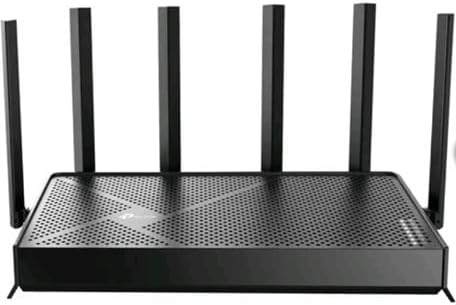
TP-Link Archer BE9500
Shop Now on Amazon
As an Amazon Associate we earn from qualifying purchases.
Wi-Fi standards are set by the IEEE and are now named by generation: Wi-Fi 5, Wi-Fi 6, Wi-Fi 6E, and Wi-Fi 7. Here is what each one means and whether it matters to you.
Wi-Fi 5 (802.11ac)
Wi-Fi 5 runs on the 2.4 GHz and 5 GHz bands and is still found in many older routers and devices. It is fine for light browsing and a handful of devices, but it is a poor fit for busy modern homes. It lacks the efficiency features of newer standards, so performance drops more quickly as devices are added. If you are buying new in 2026, there is little reason to target Wi-Fi 5.
Wi-Fi 6 (802.11ax)
Wi-Fi 6 introduced efficiency features that matter a lot in real homes: OFDMA, which lets the router talk to several devices in the same transmission, and MU-MIMO, which lets it serve multiple clients at once. The practical result is better performance in homes with many connected devices. Wi-Fi 6 is a very reasonable baseline for most households, especially if your devices are mostly Wi-Fi 6 or older.
Wi-Fi 6E (802.11ax)
Wi-Fi 6E adds the 6 GHz band to Wi-Fi 6. This is a clean, relatively uncongested slice of spectrum, which can mean lower interference in dense neighborhoods. The catch is that both the router and the client must support 6 GHz, and 6 GHz availability varies by region. If you live in a crowded apartment or condo and your devices support it, 6 GHz can help.
Wi-Fi 7 (802.11be)
Wi-Fi 7 is the current flagship standard and the focus of most 2026 buying decisions. It builds on Wi-Fi 6E and adds:
- Multi-Link Operation (MLO): a device can use multiple bands at once for higher throughput and lower latency.
- 320 MHz channels: double the width of Wi-Fi 6E’s widest channels on the 6 GHz band.
- 4K-QAM: packs more data into each signal.
The real-world benefits appear fastest with Wi-Fi 7 clients and on the 6 GHz band. Crucially, Wi-Fi 7 is backward compatible: older Wi-Fi 6, 6E, and Wi-Fi 5 devices still connect, but they run at their own speeds — buying a Wi-Fi 7 router does not make an old phone a Wi-Fi 7 device.
All seven ComponentCrate-reviewed products in this guide are Wi-Fi 7: the TP-Link Archer BE230, TP-Link Archer BE550, GL.iNet Flint 3, ASUS ROG Rapture GT-BE19000AI, ASUS ZenWiFi BQ16 Pro, MSI Roamii BE Pro, and TP-Link Deco BE65-Outdoor.
The actual benefit of any standard depends on your router, your clients, the spectrum available, interference, and regional rules. A Wi-Fi 7 router is a great foundation, but it is not a magic upgrade for every device.
Dual-Band vs. Tri-Band vs. Quad-Band
Routers broadcast on frequency bands. Understanding them matters more than a speed label.
- 2.4 GHz — the longest range and best signal penetration, but the most congested and slowest. Ideal for smart-home devices and distant rooms.
- 5 GHz — a good balance of speed and range. Most modern streaming, gaming, and work devices use it.
- 6 GHz — the newest and fastest, but with shorter range and strict regional availability rules. Best for Wi-Fi 7/6E clients close to the router.
Dual-band routers use 2.4 GHz and 5 GHz. They are perfectly suitable for many everyday homes, especially with Wi-Fi 6 or 7 efficiency. The TP-Link Archer BE230 is a good example: a dual-band Wi-Fi 7 router that is well suited to everyday households that want modern Wi-Fi without a complex setup.
Tri-band routers add a third band. This is often a second 5 GHz radio, a 6 GHz radio, or another configuration — the exact arrangement varies by model. The extra band gives busy networks more room and lets a mesh node dedicate a band to communication with other nodes. Examples include the TP-Link Archer BE550, the GL.iNet Flint 3, the ASUS ROG Rapture GT-BE19000AI, and the MSI Roamii BE Pro.
Quad-band systems use four bands. The ASUS ZenWiFi BQ16 Pro, for instance, uses a 2.4 GHz band, a 5 GHz band, and two 6 GHz bands. Multiple 6 GHz radios give a mesh system flexibility: one can be reserved for the wireless link between nodes while the other serves clients, or both can serve clients when you use a wired backhaul.
Verify the actual band layout of each model. Do not assume every tri-band or quad-band product uses the same frequency arrangement — checking the spec sheet prevents surprises.
Routers vs. Mesh Wi-Fi Systems vs. Outdoor Mesh
Standalone routers
A standalone router is one device that broadcasts the network. It is simpler to install and manage, and it is often the best value for apartments and smaller homes where one well-placed unit can cover everything. Coverage depends a lot on placement and building layout — walls, floors, and large appliances all reduce range. The GL.iNet Flint 3, the TP-Link Archer BE230, and the TP-Link Archer BE550 are examples of capable standalone routers.
Mesh Wi-Fi systems
A mesh system uses multiple coordinated nodes that share one network name and hand your devices between them as you move. Mesh is designed for larger homes, multi-floor layouts, and awkward floor plans where a single router cannot reach everything. Key considerations:
- Coverage: nodes are placed in different rooms or floors to blanket the home.
- Roaming: as you move, your device should switch between nodes without dropping.
- Backhaul: nodes communicate with each other. A wired backhaul (Ethernet between nodes) is the most stable and fast. Wireless backhaul is more convenient but depends on placement and interference.
Mesh systems and standalone routers should not be judged by the same criteria. A mesh system’s value is in coverage and seamless roaming; a standalone router’s value is simplicity and often raw per-device speed. Examples: the ASUS ZenWiFi BQ16 Pro (premium quad-band mesh) and the MSI Roamii BE Pro (tri-band mesh two-pack).
Outdoor mesh units
Some mesh products are specifically built to extend Wi-Fi outdoors — to a garden, patio, garage, or driveway. The TP-Link Deco BE65-Outdoor is a Wi-Fi 7 outdoor mesh unit with an IP65 weatherproof rating and power-over-Ethernet (PoE) ports for flexible installation. Note: an outdoor mesh node is not the same thing as a complete standalone home mesh system — it is designed to join and extend a compatible mesh, not to replace your main router on its own. Verify the exact role and compatibility of any outdoor unit with your existing mesh before buying.
Before buying, do the test that saves money: put your current router in the center of the house for a day. If the far room is then fine, you needed placement, not a new system. If it is still dead, a two-node mesh is the honest answer — a single bigger router rarely fixes a concrete-wall dead zone that a satellite can.
Understanding Router Speeds and Wi-Fi Performance
Manufacturers advertise combined theoretical Wi-Fi speeds — for example, “BE9300” or “up to 9,300 Mbps.” These numbers are the sum of the theoretical maximum of every band. They are not what a single device will receive.
What actually determines the speed you feel:
- Your internet plan. No router can make your Wi-Fi faster than your ISP connection. If you pay for gigabit internet, a multi-gigabit router simply gives you headroom, not a faster pipe.
- The WAN port. This connects to the modem/ONT. If it is 1 Gbps, a multi-gigabit internet plan is capped at 1 Gbps.
- The LAN ports. These connect wired devices. 1 Gbps vs. 2.5 Gbps vs. 10 Gbps matters for NAS units, gaming PCs, and servers.
- The client device. A Wi-Fi 6 phone connecting to a Wi-Fi 7 router will not magically achieve Wi-Fi 7 speeds.
- Distance, walls, and interference. These affect every wireless connection regardless of label.
- Number of connected devices. Busier networks need better efficiency (OFDMA, MU-MIMO, more bands).
For example, the ASUS ZenWiFi BQ16 Pro and the ASUS ROG Rapture GT-BE19000AI have 10G-class WAN/LAN ports, and the TP-Link Archer BE550 and GL.iNet Flint 3 offer five 2.5G ports. These matter most if you have a multi-gigabit internet plan or fast wired devices — not for an average 300 Mbps or gigabit connection.
Match the Router to Your Internet Plan (Not the Other Way Around)
This is the mistake that wastes the most money. A router can only push what your ISP delivers, and it can also bottleneck a fast plan. Decide your plan speed first — it sets the router tier:
- 100–300 Mbps plan: a solid mid-range router is more than enough. A flagship will not make a 300Mbps plan faster; it will only make the Wi-Fi in the far room slightly more stable.
- 500–1000 Mbps plan: you need at least a strong Wi-Fi 6 or Wi-Fi 7 router with a good processor, or the wired/Wi-Fi ceiling will cap the plan.
- 1 Gbps+ fiber: a Wi-Fi 7 router with 2.5G or 10G ports is where the money goes, because the wireless side is now the bottleneck.
Buying a flagship router for a modest plan is the most common waste in this category.
Ethernet Ports, WAN, LAN, and Multi-Gigabit Connectivity
- WAN (Wide Area Network) connects the router to your modem/ONT — your internet.
- LAN (Local Area Network) connects your wired devices.
- Gigabit Ethernet (1G) is still the common baseline and is plenty for most wired uses.
- 2.5GbE (2.5G) is becoming the sweet spot — it removes the 1G bottleneck for multi-gigabit plans and fast storage without 10G cost.
- 10GbE (10G) is for high-end NAS, workstations, and enthusiasts. It is rare on consumer routers.
Wired Ethernet generally offers more predictable latency and stability than Wi-Fi. Gamers, streamers, and anyone moving large files should consider plugging in where possible. Prioritize multi-gigabit ports if you have a multi-gigabit internet plan, a NAS, or devices with 2.5G+ ports.
Examples: the TP-Link Archer BE230 has two 2.5G ports; the TP-Link Archer BE550, GL.iNet Flint 3, and MSI Roamii BE Pro bring more multi-gigabit ports; and the ASUS ZenWiFi BQ16 Pro and ASUS ROG Rapture GT-BE19000AI lead with 10G ports.
Gaming Routers: What Actually Matters?
Gaming performance depends on latency (ping), jitter (variation in latency), packet loss, and network congestion — not on the router’s brand or a glowing logo.
What genuinely helps:
- Quality of Service (QoS), which prioritizes gaming traffic over background downloads.
- A stable wired connection to the console or PC (Ethernet beats Wi-Fi for latency).
- Managing bufferbloat — excessive latency under load — via good QoS and firmware.
- Fast, stable Wi-Fi when you cannot use a cable, which is where MLO and the 6 GHz band help.
A “gaming router” does not automatically lower your ping. Your ISP’s routing, your physical distance to the game server, and general network congestion usually matter more than any router feature. A gaming router is most useful if it brings real features — QoS, traffic prioritization, wired multi-gigabit ports, and low-latency Wi-Fi — that you will actually use.
The ASUS ROG Rapture GT-BE19000AI is the flagship gaming example in the ComponentCrate lineup: a tri-band Wi-Fi 7 router with dual 10G ports, four 2.5G ports, AI-assisted traffic prioritization, and game-focused network controls. It is a serious router for demanding setups — but a standard, well-chosen router is still sufficient for most gamers.
Security and Network Management
Security should be a factor in every router choice. Key items to confirm:
- WPA2/WPA3 encryption (use WPA3 where your devices support it).
- Firmware updates — keep them current; automatic updates are a plus.
- Firewall functionality.
- Guest network for visitors and IoT isolation.
- Parental controls where you need them.
- VPN client/server support, if you want to route traffic through a VPN or access your home network remotely.
- Secure defaults — always change the default admin password and never leave default credentials in place.
The GL.iNet Flint 3 is notable here: its OpenWrt-based firmware includes built-in VPN support (OpenVPN and WireGuard), per-device VPN policies, a kill switch, AdGuard Home ad/tracker blocking, and parental controls — provided free, without a subscription. Many routers offer some of these, but verify the specifics of any claim before relying on it.
Advanced Networking Features
Some features help everyone; others are for power users.
Useful broadly:
- MLO (Multi-Link Operation) — better throughput and latency for Wi-Fi 7 clients.
- OFDMA / MU-MIMO — efficiency with many devices.
- Beamforming — focuses signal toward clients.
- Band steering (Smart Connect) — moves devices to the best band automatically.
- Mesh roaming — seamless movement between nodes.
Mostly for advanced users:
- Wired backhaul — mesh nodes linked by Ethernet.
- VLAN support — segmenting a network (note: not all routers offer true VLANs; the GL.iNet Flint 3, for example, provides guest-network-style isolation rather than full 802.1Q VLANs).
- Multi-WAN / load balancing / failover — using two internet connections.
- VPN server/client with per-device policy.
How to Choose a Router for Your Specific Needs
Match the product to the environment.
A. Everyday Home Internet
If you want an affordable, easy-to-use router with enough coverage for a typical home and modern Wi-Fi, a dual-band Wi-Fi 7 model like the TP-Link Archer BE230 is a strong starting point. It covers the essentials — Wi-Fi 7 features, two multi-gigabit ports, EasyMesh compatibility — without the cost or complexity of a flagship.
B. Modern Wi-Fi 7 Home Network
If you have (or plan to buy) Wi-Fi 7 clients and want future-proofing plus multi-gigabit wired connections, a tri-band standalone router like the TP-Link Archer BE550 delivers full 2.5G ports and a 6 GHz band in a conventional setup. It is a good fit for a home that wants Wi-Fi 7 without moving to a mesh.
C. Large Homes and Multiple Floors
For whole-home coverage, choose a mesh system. The ASUS ZenWiFi BQ16 Pro is a premium quad-band mesh with strong coverage and dual 6 GHz radios; the MSI Roamii BE Pro is a tri-band mesh two-pack. Plan node placement, and prefer a wired backhaul when you can run cable between nodes.
D. Gaming and High-Performance Networking
If low latency, QoS, and fast wired ports are priorities, look at the ASUS ROG Rapture GT-BE19000AI (gaming-focused, dual 10G) or the GL.iNet Flint 3 (advanced, five 2.5G ports, deep controls). Remember that a cable and good QoS usually help more than branding.
E. Advanced Users and Network Enthusiasts
If you want VPNs, multi-WAN, granular controls, ad blocking, and open firmware, the GL.iNet Flint 3 is the standout choice, offering extensive customization on an OpenWrt base.
F. Outdoor Wi-Fi Coverage
To extend Wi-Fi to a yard, patio, or garage, an outdoor mesh unit like the TP-Link Deco BE65-Outdoor is built for weather resistance and outdoor placement. Confirm it is compatible with your existing mesh system, since an outdoor node is an extension, not a standalone system.
Comparison of the Seven ComponentCrate Products
| Product | Product Type | Wi-Fi Standard | Band Configuration | Ethernet Connectivity | Best For |
|---|---|---|---|---|---|
| ASUS ZenWiFi BQ16 Pro | Premium mesh system (2-pack) | Wi-Fi 7 | Quad-band (2.4/5/6+6 GHz) | 2× 10G + 3× 1G per node | Large homes, premium whole-home coverage |
| GL.iNet Flint 3 (GL-BE9300) | Standalone router | Wi-Fi 7 | Tri-band (2.4/5/6 GHz) | 5× 2.5G | Advanced users, VPN, fast wired ports |
| TP-Link Archer BE230 | Standalone router | Wi-Fi 7 | Dual-band (2.4/5 GHz) | 2× 2.5G + 3× 1G | Everyday homes, approachable Wi-Fi 7 |
| ASUS ROG Rapture GT-BE19000AI | Gaming router | Wi-Fi 7 | Tri-band (2.4/5/6 GHz) | 2× 10G + 4× 2.5G + 1× 1G | Gamers and high-performance networks |
| TP-Link Deco BE65-Outdoor | Outdoor mesh node | Wi-Fi 7 | Tri-band | 2× 2.5G PoE | Extending Wi-Fi outdoors |
| MSI Roamii BE Pro | Mesh system (2-pack) | Wi-Fi 7 | Tri-band (2.4/5/6 GHz) | 4× 2.5G + USB per unit | Multi-floor homes, mesh coverage |
| TP-Link Archer BE550 | Standalone router | Wi-Fi 7 | Tri-band (2.4/5/6 GHz) | 5× 2.5G | Modern Wi-Fi 7 home network |
These seven products serve different jobs. The Archer BE230 is the accessible entry point; the Archer BE550 and Flint 3 are capable standalone routers with full multi-gigabit ports (the Flint 3 adding deep VPN/software controls); the GT-BE19000AI is the gaming-focused high-performance router; the ZenWiFi BQ16 Pro and Roamii BE Pro are mesh systems for whole-home coverage; and the Deco BE65-Outdoor handles outdoor extension. Choose by matching the type to your layout and needs, not by comparing their speed labels alone.
How Much Should You Spend on a Router?
As you move up the range, you generally gain more wireless capacity, additional frequency bands, multi-gigabit Ethernet, better coverage options, more advanced controls, more sophisticated mesh, and higher device capacity. The tiers roughly align with:
- Entry-level routers — fine for basic homes and modest device counts.
- Mid-range Wi-Fi 7 routers — the practical sweet spot for most 2026 buyers.
- Advanced standalone routers — for power users who want ports and controls.
- Gaming routers — add gaming-focused QoS and high-end ports.
- Multi-node mesh systems — for larger homes and seamless coverage.
- Premium quad-band mesh — for the largest homes and the highest device loads.
The right amount to spend depends on your home size, device count, internet speed, and whether you need mesh, outdoor coverage, or advanced features. ComponentCrate does not display prices in its guides. Check the latest Amazon product listings for current pricing, promotions, and availability, because these change over time.
Common Router Buying Mistakes
- Buying based only on the advertised Wi-Fi speed label.
- Assuming Wi-Fi 7 automatically improves every connected device.
- Ignoring the limits of your ISP connection (the WAN and internet plan).
- Buying a powerful standalone router when your home really needs a mesh system.
- Confusing mesh systems with simple Wi-Fi extenders.
- Ignoring 6 GHz compatibility and regional restrictions.
- Overlooking Ethernet port speeds (1G vs. 2.5G vs. 10G).
- Ignoring placement and physical obstacles that kill wireless coverage.
- Buying a gaming router expecting guaranteed lower ping.
- Ignoring firmware updates and network security.
- Buying a quad-band mesh system when you do not need its capacity.
Final Router Buying Checklist
- What is my internet connection speed?
- What is the size and layout of my home?
- How many devices connect simultaneously?
- Do I need Wi-Fi 6, Wi-Fi 6E, or Wi-Fi 7?
- Do my devices support the relevant Wi-Fi standard?
- Do I need dual-band, tri-band, or quad-band?
- Would a standalone router be sufficient?
- Do I need a mesh system?
- Do I need outdoor Wi-Fi coverage?
- Are multi-gigabit Ethernet ports important?
- Do I need advanced VPN, VLAN, or multi-WAN features?
- Does the router offer the security features I need?
- Is the model compatible with my ISP and modem/ONT?
The Bottom Line
Buy the router for your plan speed and your home’s coverage, not for the generation logo on the box. For most buyers in 2026 the answer is a Wi-Fi 6 or 7 router matched to the ISP plan, with at least one 2.5GbE port for a fast plan, placed centrally — and a two-node mesh if one router genuinely cannot reach the back of the house. Do not buy a flagship for a modest plan, and do not keep blaming a dead zone on the router when it may be placement. Match the tier to the plan, fix coverage with a mesh only when a single well-placed router cannot, and the whole house will finally feel fast on every device. Check the availability on each model’s Amazon listing before you buy, since pricing shifts constantly — and browse every model we have tested in our Routers & Wi-Fi category.
How to Choose a Router in 2026
A step-by-step guide to picking the right router: plan speed, Wi-Fi standard, bands, standalone vs. mesh, ports, security and use case.
- No router can push faster than your ISP delivers, and a weak one can bottleneck a fast plan. Decide your plan speed first — it sets the router tier.
- Wi-Fi 7 adds MLO, 320 MHz channels, and 4K-QAM on top of the 6 GHz band and stays backward compatible. Wi-Fi 6 and 6E remain a sensible baseline for most homes.
- Understand the 2.4, 5, and 6 GHz bands and how many radios the model actually uses. The exact band layout varies by model, so verify it on the spec sheet.
- One well-placed router suits apartments and smaller homes. Mesh covers large or multi-floor homes with seamless roaming. An outdoor node extends Wi-Fi to a yard, patio, or garage.
- Confirm WAN/LAN port speeds (1G, 2.5G, 10G), WPA3, guest network, firmware updates, and any VPN, QoS, or multi-WAN features you will actually use.
- Pick the router for your scenario — everyday, Wi-Fi 7 home, large home, gaming, advanced, or outdoor — and work through the final buying checklist before you purchase.
Note: Prices and availability change frequently. Always verify the latest price and configuration on the Amazon product page before purchasing.
Frequently Asked Questions
Related Guides and Categories
- Routers & Wi-Fi category — every router and mesh review we have published
- ASUS ZenWiFi BQ16 Pro review
- GL.iNet Flint 3 review
- TP-Link Archer BE230 review
- ASUS ROG Rapture GT-BE19000AI review
- TP-Link Deco BE65-Outdoor review
- MSI Roamii BE Pro review
- TP-Link Archer BE550 review
- How to Choose a Monitor in 2026 — pair your network with the right display
- How to Choose a Webcam in 2026 — pair your network with the right peripherals
- Computers & Laptops category
- Docks & Hubs category
- External Storage category