
Knowing how to choose an SSD is about more than looking at the advertised sequential read and write speeds on the box. The fastest-looking drive is only as good as the interface your system actually supports, the NAND and cache design behind its sustained performance, and whether the drive physically fits your machine. The SSD you choose interacts with your motherboard, your workload, and how you store and write data, so the right choice depends on matching those details to your needs. This article focuses on internal SSDs that connect directly to your motherboard or storage interface, not external portable drives, and it uses the five internal SSDs we have reviewed in depth as concrete examples throughout.
As an Amazon Associate, I earn from qualifying purchases.
1. SATA vs. NVMe: Understanding the Difference
Two distinct things determine how an internal SSD connects and talks to your system: the interface and the protocol. SATA (Serial ATA) is an older interface; SATA III (6 Gb/s) carries a practical bandwidth ceiling of roughly 560 MB/s, which is why essentially every SATA SSD tops out there. NVMe (Non-Volatile Memory Express) is a storage protocol designed for flash memory, and it runs over a PCIe connection, so it can use many more lanes and far higher bandwidth.
An M.2 connector does not automatically mean a drive is NVMe. M.2 is a physical form factor that can carry either SATA or NVMe signals. An M.2 SATA drive uses the same SATA protocol and speed limits as a 2.5-inch SATA SSD, just in a smaller stick form. An M.2 NVMe drive uses the PCIe interface and NVMe protocol for dramatically higher throughput. Physically, 2.5-inch SATA SSDs are larger rectangular drives that need a SATA data and power cable and a drive bay, while M.2 drives are small sticks that plug directly into an M.2 slot on the motherboard.
NVMe drives generally deliver substantially higher sequential throughput than SATA SSDs, but the real-world benefit depends on your workload. For booting, launching applications, and ordinary desktop tasks, a well-made SATA SSD can feel nearly as responsive, and many users would not notice a large difference. Where NVMe’s advantage clearly shows is in large file transfers, heavy multitasking, and workloads that benefit from high sequential and random bandwidth. The Samsung 870 EVO 1TB we reviewed is a strong example of how good a modern 2.5-inch SATA SSD can be, with class-leading random read for its interface, but it is still capped by SATA at roughly 560 MB/s, far below any NVMe drive.
2. PCIe Gen 3 vs. Gen 4 vs. Gen 5
The PCIe generation determines the interface bandwidth an NVMe drive can use. In practical consumer terms, the relevant configurations are PCIe 3.0 x4, PCIe 4.0 x4, and PCIe 5.0 x4.
| Interface | Theoretical bandwidth (x4) | Typical advertised SSD sequential read |
|---|---|---|
| PCIe 3.0 x4 | ~3.94 GB/s | ~3,000–3,500 MB/s |
| PCIe 4.0 x4 | ~7.88 GB/s | ~7,000–7,400 MB/s |
| PCIe 5.0 x4 | ~15.75 GB/s | ~10,000–14,000 MB/s |
These generations are backward compatible: a PCIe 4.0 drive works in a PCIe 3.0 slot, and a PCIe 5.0 drive works in a 4.0 or 3.0 slot, but in each case the slot’s lower generation sets the ceiling. To reach a drive’s full rated speed you need a motherboard and CPU whose M.2 slot provides that PCIe generation. Only the platform’s supported generation matters; the drive cannot exceed what the slot can feed it.
Never compare advertised or measured sequential speeds from different PCIe generations as if they were obtained under identical conditions. A Gen5 drive’s headline number is not directly comparable to a Gen4 drive’s because the interface bandwidth differs, and benchmark results from different review laboratories, platforms, workloads, firmware versions, and test configurations are not interchangeable. In this guide we treat the five reviewed drives as Gen4 products (plus one SATA drive) and do not rank them numerically against one another or against unpublished Gen5 results.
A PCIe Gen 5 SSD is not automatically the best purchase for every user. Its extra bandwidth mostly helps very large sustained transfers and heavy professional workloads; for everyday use and gaming, a fast Gen4 drive already delivers far more throughput than most workloads use. All five NVMe drives we reviewed are Gen4, and they remain excellent choices in 2026.
Shop Now

Lexar NM790 2TB Heatsink
Shop Now on Amazon
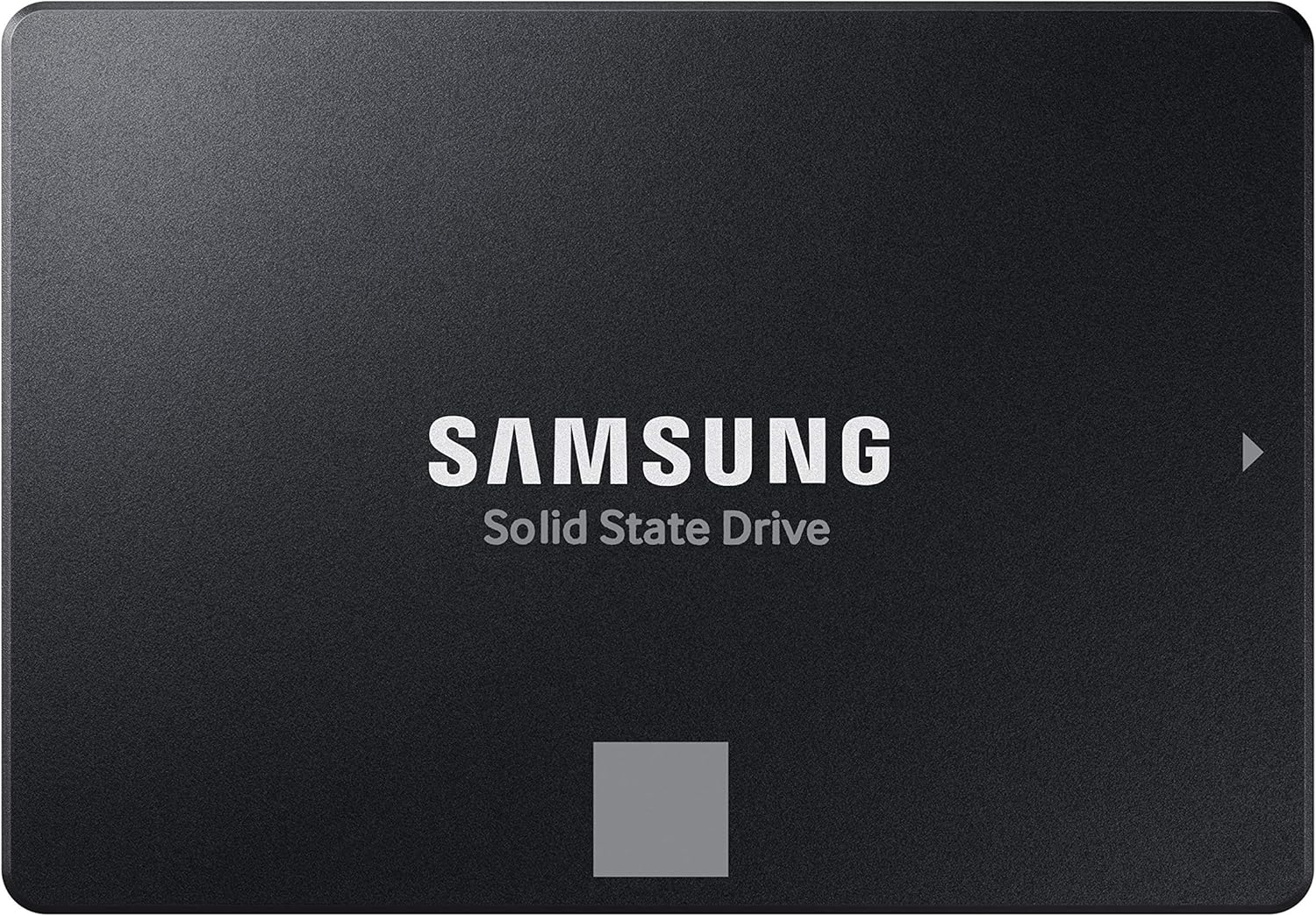
Samsung 870 EVO 1TB
Shop Now on Amazon

Samsung 990 EVO Plus 2TB
Shop Now on Amazon

WD_BLACK SN850X 1TB
Shop Now on Amazon

WD_BLACK SN7100 1TB
Shop Now on Amazon
As an Amazon Associate we earn from qualifying purchases.
3. TLC vs. QLC NAND and the SLC Cache
NAND flash stores data in cells that hold a number of bits. The two types most relevant to consumer SSDs are:
- TLC (Triple-Level Cell) stores 3 bits per cell. It balances capacity, performance, and endurance, which is why most mainstream and premium consumer SSDs use TLC.
- QLC (Quad-Level Cell) stores 4 bits per cell. It offers higher density for a given capacity, generally with lower endurance and slower sustained write performance than TLC.
All five drives we reviewed use TLC NAND: the Lexar NM790 uses 232-layer TLC, the Samsung 870 EVO uses 128-layer V-NAND TLC, the Samsung 990 EVO Plus uses V-NAND TLC, the WD_BLACK SN850X uses SanDisk TLC, and the WD_BLACK SN7100 uses 218-layer BiCS8 TLC. NAND type alone does not determine a drive’s overall quality, because the controller, cache design, firmware, and implementation all matter. It is also not true that every QLC SSD is unsuitable for demanding workloads or that every TLC SSD is automatically superior in every case; the detail matters more than the label.
SLC caching is how many TLC (and QLC) SSDs deliver high short-duration write speeds. A portion of the TLC NAND operates in SLC mode (storing one bit per cell) as a fast buffer, so burst writes are absorbed quickly. Once that cache fills, the drive writes at its slower native TLC speed. Cache size and behavior can vary by capacity, firmware, and available free space. The reviewed drives illustrate this: the Samsung 990 EVO Plus uses an Intelligent TurboWrite 2.0 hybrid pSLC cache of roughly 226GB on the 2TB model, and the WD_BLACK SN850X has about 300GB of SLC-cached writes on an empty 1TB drive before TLC speeds apply. We do not invent cache sizes or sustained-write figures beyond what the reviews document; we also note that advertised write speeds are peaks, not sustained rates.
4. DRAM vs. DRAM-Less SSDs
The Flash Translation Layer (FTL) maps logical addresses to physical NAND locations. An onboard DRAM cache stores these mapping tables, which can improve random performance and sustained behavior. DRAM-less designs do not have this onboard cache; instead they may use Host Memory Buffer (HMB), borrowing a small slice of system memory for address mapping.
Among the reviewed drives, the WD_BLACK SN850X 1TB and the Samsung 870 EVO are DRAM-equipped (DDR4 and 1GB LPDDR4 respectively). The Samsung 990 EVO Plus 2TB, WD_BLACK SN7100 1TB, and Lexar NM790 are DRAM-less HMB designs.
DRAM can contribute to more consistent sustained performance under heavy or sustained write workloads. However, DRAM-less does not automatically mean poor quality. The reviewed HMB drives are strong performers, and in gaming and everyday use the difference from DRAM-equipped drives is often not noticeable. HMB is not a complete substitute for onboard DRAM in every workload: sustained heavy writes after an SLC cache depletes generally trail DRAM-equipped flagships. We distinguish the design characteristic (DRAM vs. HMB) from actual measured performance; each drive’s real-world behavior is documented in its review.
5. Choosing the Right SSD Capacity
Capacity affects both what you can store and how the drive performs, because larger drives can also make more NAND available to a cache. Practical starting points are:
- Basic OS and everyday use: 1TB is a comfortable floor for a system drive in 2026, giving room for the operating system, applications, and personal files.
- Gaming PCs: 1TB is the workable minimum, while 2TB is the practical sweet spot for a modern game library, since large installs fill a 1TB drive quickly once the OS takes its share.
- Content creation and large project files: 2TB and up suit video projects, photo libraries, and working files that occupy a lot of space.
- Workstations and heavy storage workloads: Larger drives (4TB and beyond) suit heavy local storage needs, though the reviewed drives start at 1TB and 2TB.
Usable capacity is lower than the nominal advertised capacity because of formatting and system-level factors that reserve space, so a “1TB” drive offers somewhat less than 1TB of usable space. We deliberately avoid presenting arbitrary capacity figures as universal requirements; check the retailer’s current listing for availability.
6. SSD Endurance, TBW and Warranty
TBW (Terabytes Written) is a rated endurance specification indicating how much data the manufacturer rates the drive to write over its life. DWPD (Drive Writes Per Day) is another way to express endurance over a defined warranty period. NAND write endurance, manufacturer ratings, and warranty terms all factor into how long a drive is expected to last.
The reviewed drives carry these verified figures:
- Lexar NM790 2TB: 1,500 TBW, 5-year limited warranty.
- Samsung 870 EVO 1TB: 600 TBW, 5-year limited warranty (or TBW, whichever first).
- Samsung 990 EVO Plus 2TB: 1,200 TBW, 5-year limited warranty.
- WD_BLACK SN850X 1TB: 600 TBW, 5-year limited warranty.
- WD_BLACK SN7100 1TB: 600 TBW, 5-year limited warranty.
TBW is a rating, not a prediction of the exact moment a drive will fail, and a higher TBW does not automatically mean a drive will last longer in every real-world scenario. Warranty conditions may include both a time limit and a written-data limit, and which comes first governs coverage. We use only the endurance figures and warranty terms verified in the reviews and manufacturer documentation; we do not invent TBW values or warranty language.
7. SSD Temperatures and Heatsinks
NVMe SSD controllers can generate significant heat, especially at high throughput. If a controller gets too hot, the drive may thermally throttle, reducing sustained performance to protect itself. This is why cooling matters for fast NVMe drives.
There are two common sources of cooling. A motherboard-integrated M.2 heatsink is built into the board over an M.2 slot and cools whatever drive you install there. A manufacturer-supplied heatsink is fitted to the drive at the factory. The two are not interchangeable: you generally use one or the other, not both, and adding a second heatsink over one that is already built in is not recommended. Clearance can also matter, because a thick heatsink may collide with a GPU backplate, motherboard covers, or other components, and may exceed a laptop’s height allowance.
Among the reviewed drives, the Lexar NM790 2TB with Heatsink ships with an integrated slim-profile aluminum heatsink (about 80 × 24 × 9.7mm at roughly 48.6g), making it a drop-in option for PS5 and desktop builds. By contrast, the Samsung 990 EVO Plus, WD_BLACK SN850X (bare model), and WD_BLACK SN7100 ship without a heatsink, so you would rely on a motherboard’s M.2 heatsink or fit one yourself. Thermal measurements from the reviews include roughly 58°C for the SN850X under load and about 48°C for the SN7100 under a motherboard heatsink, with the NM790 and 990 EVO Plus also noted for cool, efficient operation. We do not claim every PCIe Gen 5 drive requires an aftermarket heatsink, and we only use temperature figures where the source review states its test conditions.
8. Internal SSD Compatibility and PS5 M.2 Requirements
Compatibility has two very different parts: your PC and a PlayStation 5. Matching the drive to the machine is essential, because a physically compatible M.2 drive is not necessarily electrically or functionally compatible with every M.2 slot.
PC compatibility
Before buying an internal SSD, check:
- M.2 form factor: the drive must fit your slot (most consumer drives are M.2 2280).
- Supported keying and interface: NVMe drives use the M key; confirm the slot accepts the drive’s key and protocol.
- SATA versus NVMe support: an M.2 slot may support SATA, NVMe, or both; an NVMe drive needs an NVMe-capable slot.
- PCIe generation supported by motherboard and CPU: the slot’s generation sets the speed ceiling.
- Available M.2 slots and lane sharing: some slots share bandwidth or disable other connections when occupied.
- Physical length and heatsink clearance: confirm the 2280 length fits and any heatsink clears nearby parts.
The five reviewed drives are all standard M.2 2280 or 2.5-inch SATA form factors, so fit depends on having a matching slot. A 2.5-inch SATA drive like the Samsung 870 EVO needs a SATA bay and port, not an M.2 slot, and is the right choice only for systems without a free NVMe slot.
PS5 compatibility
Sony’s official requirements for an M.2 SSD accepting a PS5 are specific. Verified against PlayStation documentation, the drive must be:
- Interface: PCIe Gen4x4 supported M.2 NVMe SSD (Key M). M.2 SATA SSDs are not supported.
- Capacity: 250GB to 8TB.
- Form factor: 2230, 2242, 2260, 2280, or 22110.
- Size including cooling: width up to 25mm, length 30/42/60/80/110mm, thickness up to 11.25mm (up to 8.0mm above the board and 2.45mm below).
- Sequential read speed: 5,500MB/s or faster is recommended.
- Cooling: effective heat dissipation with a cooling structure (such as a heatsink or heat transfer sheet) is required.
The PS5 does not support Host Memory Buffer, so an HMB drive may perform slower than expected in the console even if it otherwise meets the specs, and Sony notes it cannot guarantee every matching drive will work. Not all games run at the same performance as the console’s internal drive. Among the reviewed drives, the Lexar NM790 with Heatsink is designed for PS5 and arrives with its integrated heatsink fitted, the WD_BLACK SN850X has a heatsink variant WD lists as PS5-compatible, and the WD_BLACK SN7100 and Samsung 990 EVO Plus can be used only if you fit an appropriate heatsink and confirm the drive meets Sony’s requirements. Do not assume a drive is PS5-compatible simply because of its M.2 connector or advertised speed.
9. Common SSD Buying Mistakes
- Confusing M.2 with NVMe. An M.2 drive can be SATA or NVMe; the connector shape does not set the protocol.
- Buying an SSD with an interface unsupported by the motherboard. Confirm the slot’s protocol and PCIe generation.
- Assuming PCIe Gen 5 always provides a meaningful advantage. It mostly helps very large sustained transfers, not everyday use.
- Comparing sequential speeds across different PCIe generations without context. Different interfaces, labs, and conditions are not directly comparable.
- Ignoring sustained-write performance and SLC cache behavior. Advertised speeds are peaks, not sustained rates.
- Treating TLC and QLC as the only indicators of SSD quality. Controller, cache, and firmware matter too.
- Assuming DRAM-less drives are always unsuitable. HMB drives perform well for most workloads, while sustained heavy writes favor DRAM.
- Ignoring endurance and warranty conditions. TBW and warranty both set expectations.
- Forgetting heatsink clearance. A thick heatsink may not fit every build.
- Assuming every M.2 NVMe drive is PS5-compatible. The console has strict interface, size, cooling, and speed requirements and no HMB support.
- Confusing internal SSDs with external USB storage. Internal drives connect to the motherboard; external drives use an enclosure and an external interface.
Conclusion: Choosing the Right Internal SSD
Work through these steps in order:
- Motherboard and platform compatibility. Confirm the form factor, interface (SATA vs. NVMe), keying, and PCIe generation your system supports.
- Workload. Decide whether you need SATA (older systems), Gen4 NVMe (most builds), or Gen5 (heavy sustained transfers).
- Capacity requirements. Choose a size that fits your OS, applications, and files without constant shuffle.
- Performance needs. Consider cache design, DRAM vs. HMB, and sustained-write behavior for your tasks.
- Endurance and thermal requirements. Match TBW and warranty to your write volume, and plan cooling for fast drives.
For product-specific comparisons and recommendations across the reviewed drives, see our Best SSDs for Gaming in 2026 guide, and browse the SSD Reviews hub for each full review. If you are choosing portable storage instead, the Best External SSDs guide covers external drives, which use an enclosure and an external connection and whose performance depends on both the drive and the interface. Internal and external SSDs serve different installation, portability, and usage needs, and we keep them separate.
Related guides
- Best SSDs for Gaming in 2026
- SSD Reviews
- WD_BLACK SN850X 1TB review
- Samsung 990 EVO Plus 2TB review
- Best External SSDs
- How to Choose External Storage (2026 Buyer’s Guide)
How to choose: How to Choose an SSD (2026 Buyer’s Guide)
Step-by-step decision guide: How to Choose an SSD (2026 Buyer’s Guide).
- Check whether the system uses SATA or NVMe and which PCIe generation the M.2 slot supports.
- Match capacity to the workload, then check NAND type, SLC cache behavior and DRAM versus HMB design.
- Verify endurance (TBW), warranty terms and thermal cooling for the exact drive.
- Confirm form factor, keying, slot availability and heatsink clearance before buying.
- For a PS5, check PCIe Gen4x4 Key M, capacity limits, dimensions, cooling and the 5,500 MB/s recommended read speed.
- Keep internal SSDs separate from external portable storage and use the matching guide for each.
Note: Prices and availability change frequently. Always verify the latest price and configuration on the Amazon product page before purchasing.