
Choosing a graphics card is not simply a matter of picking the newest or highest-tier model. The right GPU depends on the monitor it will drive, the games and applications you run, and the rest of your PC — your power supply, your case, and even your CPU. A card that is perfect for one build can be the wrong choice for another. This guide walks through the decisions that matter, in the order they matter: target resolution, rendering technology, VRAM, power, upscaling, connectivity, and physical fit.
Start With Your Target Resolution: 1080p, 1440p, or 4K
Your monitor’s resolution is the single biggest influence on how much GPU you need. Higher resolutions render more pixels, which places a larger workload on the card. A card that runs a game effortlessly at 1080p may struggle at the same settings on a 4K screen.
1080p
1080p is the lowest of the three common gaming resolutions. It is comparatively easy to render, which shifts more of the burden onto the CPU at high frame rates. It remains a sensible choice for users who want high refresh rates without the cost of a larger, higher-resolution panel. Most modern cards, including the budget options in our library, handle 1080p comfortably.
1440p
1440p is a practical balance between image detail and GPU workload. It renders significantly more pixels than 1080p, so it demands a stronger card, but it is far easier to drive than 4K. For most builders in 2026, 1440p is the sweet spot — and it is where GPU choice matters most. For our specific 1440p recommendations, see our guide to the best GPUs for 1440p gaming.
4K
4K has roughly four times the pixel count of 1080p and significantly more than 1440p. That workload makes GPU capability, VRAM, upscaling, and settings choices especially important. Here, the three 4K-class cards we have reviewed illustrate how the tier behaves: For our dedicated 4K recommendations, see our 4K gaming GPU guide.
- RTX 5090 (ASUS ROG Astral): the flagship 32GB card in our library, built for uncompromising 4K and beyond, with very high power and physical demands.
- RTX 5080 (MSI Inspire 3X OC Black): a 16GB card that targets smooth 4K and high-refresh 1440p in a compact 2.5-slot design.
- RTX 5070 Ti (PNY OC Triple-Fan): a 16GB card that targets native 4K/120Hz in most titles, relying on upscaling in the most demanding games.
An important distinction: being able to output a 4K display signal is not the same as delivering demanding 4K gaming performance. Nearly every modern card can drive a 4K monitor for desktop use or video. Whether it can hold high frame rates in demanding games at 4K is a separate question, and it depends on the card’s actual performance, not just its display outputs.
Rasterization vs Ray Tracing: Understand What the GPU Is Rendering
Graphics cards render scenes in two fundamentally different ways, and the distinction matters when comparing performance.
Rasterization
Rasterization is how 3D geometry is converted into the 2D pixels you see on screen. It has been the foundation of real-time game rendering for decades, and conventional gaming benchmarks mostly measure it. When you compare cards using “raster” performance, the settings and resolution matter: a result at one resolution or preset is not directly comparable to a result at another.
Ray tracing
Ray tracing simulates how light travels and interacts with a scene, powering realistic reflections, shadows, and global illumination. It is far more computationally demanding than rasterization, and enabling it can substantially increase the workload on the GPU. Performance with ray tracing varies widely between games and implementations.
Because the two approaches stress different hardware, a card’s rasterization performance does not establish its ray tracing performance. The AMD cards in our library (the RX 7700 XT, RX 9070 XT, and RX 9060 XT) deliver strong raster results but trail NVIDIA’s cards in ray tracing, while NVIDIA’s RTX cards lead in ray tracing and the features around it. Comparing an AMD card’s raster score to an NVIDIA card’s ray-tracing score would conflate two different workloads.
Benchmark integrity matters here: only compare performance figures when the tests use comparable games, resolutions, settings, ray-tracing settings, rendering modes, and upscaling configurations. Figures from different benchmark suites or test environments cannot be combined into a single numerical ranking.
Shop Now

ASRock Radeon RX 7700 XT Challenger 12GB OC
Shop Now on Amazon

ASUS Prime GeForce RTX 5070 12GB GDDR7 OC Edition
Shop Now on Amazon

ASUS Prime Radeon RX 9070 XT 16GB GDDR6 OC Edition
Shop Now on Amazon
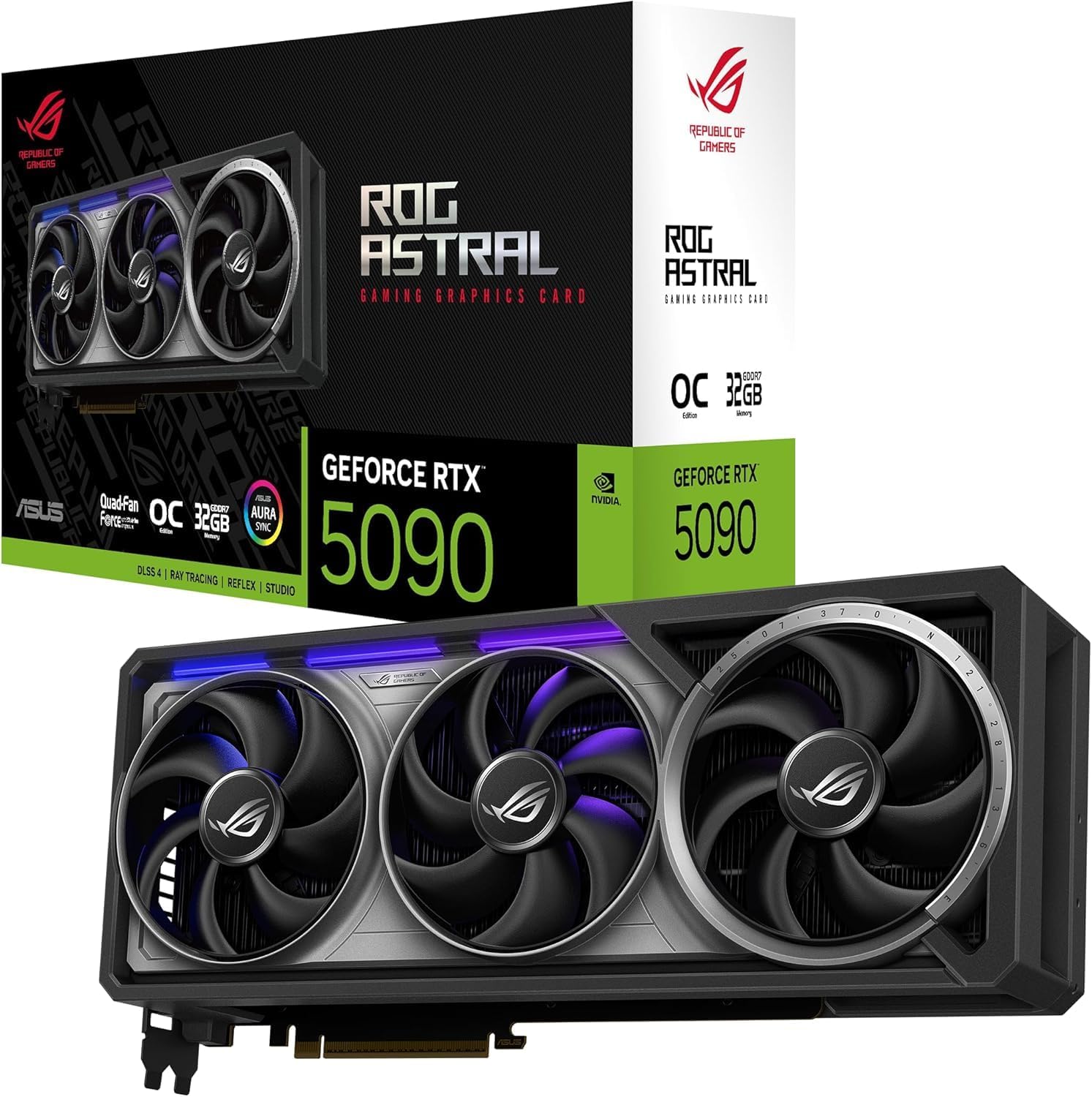
ASUS ROG Astral GeForce RTX 5090 32GB GDDR7 OC Edition
Shop Now on Amazon

GIGABYTE GeForce RTX 4070 Super WINDFORCE OC 12G
Shop Now on Amazon

MSI GeForce RTX 5080 16G INSPIRE 3X OC BLACK
Shop Now on Amazon

PNY GeForce RTX 5070 Ti OC Triple-Fan 16GB
Shop Now on Amazon

ASUS Prime GeForce RTX 5060 Ti 16GB
Shop Now on Amazon

ASUS Dual GeForce RTX 5060 Ti 16GB GDDR7 OC
Shop Now on Amazon

ASUS Dual Radeon RX 9060 XT 16GB White
Shop Now on Amazon
As an Amazon Associate we earn from qualifying purchases.
VRAM: How Much Graphics Memory Do You Need?
VRAM is the dedicated memory on the graphics card. It stores textures, frame buffers, and other rendering resources, and its usage rises with resolution, texture quality, ray tracing, and game complexity. Creative and compute workloads can also consume significant VRAM.
The cards we have reviewed span a clear VRAM ladder:
- 12GB: RTX 5070 (ASUS Prime), RTX 4070 Super (GIGABYTE), RX 7700 XT (ASRock) — comfortable at 1440p, a declared ceiling for heavy 4K texture loads.
- 16GB: RTX 5080 (MSI), RTX 5070 Ti (PNY), RX 9070 XT (ASUS Prime), RTX 5060 Ti (ASUS Prime and Dual), RX 9060 XT (ASUS Dual) — headroom at 1440p and solid 4K texture capacity.
- 32GB: RTX 5090 (ASUS ROG Astral) — flagship capacity for 4K and beyond plus demanding creative/AI workloads.
More VRAM does not automatically make a GPU faster. Memory capacity is separate from memory bandwidth, the memory interface, and the GPU’s processing capability. A wide, fast memory bus with ample bandwidth can matter more than raw gigabytes, and the GPU’s compute power still does the frame-rate work. A card with 16GB is not automatically faster than a 12GB card of a higher tier.
There is no single VRAM requirement for every game or resolution. Actual memory use depends on the game, its settings, its assets, and the rendering features enabled. Avoid blanket claims like “8GB is always enough” or “16GB is always required” — assess the specific workload.
GPU Power Consumption: TGP, TBP, and System Requirements
A graphics card’s power consumption is a practical constraint. Manufacturers describe it with different terms — NVIDIA commonly uses TGP (Total Graphics Power), and AMD commonly uses TBP (Total Board Power). These are not universally interchangeable measurements, and different brands may define them differently. What matters is the actual power the card draws under load and what your system can supply.
Board-partner versions of the same GPU can have different power limits. For example, the ASUS Prime RX 9070 XT runs a lower ~317W target than larger 9070 XT cards, which costs it a few frames versus higher-TBP versions. The same silicon, different power envelope, different behavior.
Power consumption affects your choice of power supply, cooling requirements, case airflow, operating noise, and overall system stability. It is also not the same as the total power draw of the whole PC — the CPU and the rest of the system draw power too, which is why PSU sizing considers the entire build.
Verified power figures from our reviews include:
- RX 7700 XT (ASRock): two 8-pin connectors, 750W PSU recommended.
- RTX 5070 (ASUS Prime): 250W reference TGP (adjustable 175–300W), single 16-pin 12V-2×6, 750W PSU recommended.
- RX 9070 XT (ASUS Prime): ~317W TBP, three 8-pin connectors, 750W PSU recommended.
- RTX 4070 Super (GIGABYTE): 220W TGP, single 16-pin (adapter included), 700W PSU recommended.
- RTX 5080 (MSI Inspire): 360W TBP, single 16-pin 12V-2×6, 850W (ATX 3.1) PSU recommended.
- RTX 5090 (ASUS ROG Astral): 600W default power limit, 16-pin, requiring a high-wattage PSU.
- RTX 5060 Ti (ASUS Prime/Dual) and RX 9060 XT (ASUS Dual): ~180W and 160W respectively, single 8-pin, 600–650W PSU recommended.
DLSS, FSR, Upscaling, and Frame Generation
Modern GPUs increasingly rely on software features to deliver smooth games at high resolutions. It is essential to distinguish three different things: native rendering, upscaling, and frame generation.
Native rendering
Native rendering means the game is rendered at the selected output resolution without spatial or temporal upscaling from a lower internal resolution. This is the baseline your raw frame rate reflects.
Upscaling
Upscaling renders the game at a lower internal resolution, then reconstructs an image to match your display’s output resolution. NVIDIA’s DLSS and AMD’s FSR are two examples, with different implementations, image-quality characteristics, and performance gains depending on the game, the mode, the GPU, and the version. Feature support varies by GPU generation and game; not every DLSS or FSR feature is available on every GPU or in every title.
Frame generation
Frame generation inserts additional frames between rendered frames, increasing the displayed frame rate. There is a critical distinction between the displayed frame rate and the underlying rendered frame rate — they are not equivalent. Frame generation can also introduce additional latency or visual artifacts depending on the implementation and conditions, and it should never be presented as a replacement for strong native rendering performance.
This is why you should never compare native FPS directly with upscaled or frame-generated FPS as though they were the same measurement. When performance is discussed, identify whether the result is native or upscaled, the upscaling mode, the frame-generation status, the ray-tracing status, the resolution, and the game and settings. A frame-generated 180 FPS is not the same as a native 180 FPS.
Display Connectivity and Power Supply Compatibility
Display connectivity
Check the exact card’s outputs before relying on them. Verified output configurations across our reviews include:
- RX 7700 XT (ASRock): 3× DisplayPort 2.1 (DSC) + 1× HDMI 2.1.
- RTX 5070 (ASUS Prime): 3× DisplayPort 2.1b + 1× HDMI 2.1b.
- RX 9070 XT (ASUS Prime): 3× DisplayPort 2.1a + 1× HDMI 2.1b, up to 4 displays, 8K support.
- RTX 4070 Super (GIGABYTE): HDMI 2.1a + DisplayPort 1.4a.
- RTX 5080 (MSI Inspire): 3× DisplayPort 2.1b + 1× HDMI 2.1b, up to 4 displays, 8K support.
- RTX 5090 (ASUS ROG Astral): 2× HDMI 2.1b + 3× DisplayPort 2.1a.
- RTX 5060 Ti (ASUS Prime/Dual) and RX 9060 XT (ASUS Dual): HDMI 2.1b + DisplayPort 2.1b (NVIDIA) / HDMI 2.1 + 3× DisplayPort 2.1 (AMD).
The presence of an HDMI or DisplayPort connector does not guarantee every resolution and refresh-rate combination. Verify the exact port version and the GPU’s output specifications, and remember that your monitor’s inputs and your cable also have to support the mode you want.
Power connectors
Modern cards use different connectors. Some use conventional PCIe 8-pin connectors, others use the 16-pin 12VHPWR or the newer 12V-2×6. Our reviews show this variety directly:
- Two 8-pin: RX 7700 XT (ASRock).
- Three 8-pin: RX 9070 XT (ASUS Prime).
- Single 16-pin 12V-2×6 (with 8-pin adapter included): RTX 5070, RTX 4070 Super, RTX 5080, RTX 5070 Ti, RTX 5090.
- Single 8-pin: RTX 5060 Ti (ASUS Prime/Dual), RX 9060 XT (ASUS Dual).
Confirm your PSU has the correct connectors and can power them, use the manufacturer’s recommended adapter correctly, insert cables fully, and avoid sharp bends close to the connector. The 12VHPWR/12V-2×6 connector especially demands proper seating and clearance.
PSU sizing
The right power supply depends on the GPU’s power requirements, the CPU’s requirements, the rest of the system, manufacturer recommendations, PSU quality and available connectors, and reasonable headroom. Do not choose a PSU wattage purely from the GPU’s name — an 850W recommendation on a high-end card assumes a substantial CPU and a quality unit. See our How to Choose a Power Supply guide for full guidance.
Cooling, Dimensions, and Case Compatibility
The exact graphics card model matters, not just the GPU chip. Two cards built on the same GPU can differ in length, height, thickness, cooler design, fan configuration, and heat dissipation. Our reviews show this clearly: the RTX 5080 is available as the compact 288mm, ~2.5-slot MSI Inspire and as larger triple-fan designs; the RTX 5090 in our library is a massive 3.8-slot, 357mm all-metal ASUS ROG Astral.
Verified dimensions across our reviews include:
- RX 7700 XT (ASRock): 267 × 130 × 51mm, dual-fan.
- RTX 5070 (ASUS Prime): 304 × 126 × 50mm, 2.5-slot, SFF-ready.
- RX 9070 XT (ASUS Prime): 312 × 130 × 50mm, 2.5-slot.
- RTX 4070 Super (GIGABYTE): 261 × 126 × 50mm, triple-fan.
- RTX 5080 (MSI Inspire): 288 × 112 × 50mm, ~2.5-slot, SFF-ready.
- RTX 5070 Ti (PNY): 300 × 120 × 60mm, ~3-slot.
- RTX 5090 (ASUS ROG Astral): 357.6 × 149.3 × 76mm, 3.8-slot.
- RTX 5060 Ti (ASUS Prime/Dual) and RX 9060 XT (ASUS Dual): 304mm / ~265mm / ~220–240mm, 2.5-slot / dual-slot.
Check that the card fits your case in length, height, and thickness, and that it leaves room for its power cable and airflow. A card that is labeled SFF-ready is about thickness, not necessarily length — the ASUS Prime RTX 5060 Ti, for example, is 304mm long, so measure your actual clearance. Do not assume a case supports a card based only on its advertised GPU length limit; consider front fans, radiators, and other installed components. See our How to Choose a PC Case guide for details on clearance and airflow.
We do not invent temperatures, noise levels, or thermal measurements; where our reviews note thermal or acoustic behavior, treat it as specific to that card’s cooler and test conditions.
1440p vs 4K: Which Resolution Makes Sense?
Bringing the selection together, the choice between 1440p and 4K affects almost every other decision.
- Pixel count and workload: 4K renders far more pixels than 1440p, so it needs a substantially stronger GPU for the same settings and frame rate.
- GPU requirements: 1440p is achievable with the mid-range cards in our library (RTX 5060 Ti, RX 9060 XT, RX 7700 XT, RTX 5070). True 4K gaming pushes toward the RTX 5070 Ti, RTX 5080, RX 9070 XT, and RTX 5090, usually with upscaling in the heaviest titles.
- VRAM: 16GB is a sensible floor for both, and especially for 4K with high-quality textures.
- Ray tracing: 4K with ray tracing is the most demanding combination; expect to lean on upscaling and frame generation heavily.
- Upscaling and frame generation: these matter far more at 4K, where native performance alone often falls short.
- Monitor and refresh rate: a 4K high-refresh monitor is itself a significant investment. 1440p high-refresh panels deliver much of the visual benefit for less.
4K is not inherently better for every user. It depends on the monitor you actually own or plan to buy, and the workloads you run. If your display is 1440p, buying a 4K-class flagship may buy headroom you cannot see. If you have a 4K panel, a card that can only output a 4K signal but not deliver strong 4K gaming performance will disappoint. Match the card to the real monitor and workload. For specific 1440p recommendations, see our 1440p GPU guide.
Common GPU Buying Mistakes
Most GPU mistakes trace back to a handful of avoidable issues:
- Choosing a GPU without considering the target resolution.
- Assuming a higher model number is always the better choice for a specific workload.
- Treating rasterization and ray tracing results as equivalent.
- Comparing unrelated benchmark suites numerically.
- Treating upscaled or frame-generated FPS as native rendered FPS.
- Buying a card based on VRAM capacity alone.
- Ignoring TGP/TBP and PSU requirements.
- Assuming all cards using the same GPU have identical power connectors.
- Ignoring physical dimensions and case clearance.
- Assuming HDMI or DisplayPort output guarantees every refresh-rate mode.
- Choosing a card without checking the monitor’s actual resolution and refresh rate.
- Assuming DLSS or FSR features are supported identically across all GPU models and games.
Before you buy, run through a checklist:
- What resolution does my monitor actually use, and what refresh rate?
- What is the GPU’s verified VRAM, and does it match my workload?
- What are the card’s power draw and connector requirements, and does my PSU meet them?
- What are the card’s dimensions, and will it fit my case with room for cables and airflow?
- Does the card support the display modes and outputs I need?
- Will I rely on upscaling or frame generation, and does my game library support the relevant technology?
Where to Start
The ten cards we have reviewed give you a verified starting point across the performance spectrum. Browse them all at the Graphics Card Reviews hub, and read the full review of any card you are considering before you buy. For the fastest overview of the 1440p tier, start with our 1440p GPU recommendations.
How to choose: How to Choose a Graphics Card (2026 Buyer’s Guide)
Step-by-step decision guide: How to Choose a Graphics Card (2026 Buyer’s Guide).
- Start with the monitor: choose a target resolution and refresh rate before comparing cards.
- Separate rasterization from ray tracing, and never compare results from different benchmark suites or rendering modes.
- Read VRAM together with bandwidth and GPU capability; capacity alone does not make a card faster.
- Check the card power draw, the connector type and the PSU recommendation for the whole system, not the GPU alone.
- Keep native rendering, upscaling and frame generation distinct when reading performance claims.
- Measure the case clearance for length, height and thickness, and verify the display outputs your monitor needs.
Note: Prices and availability change frequently. Always verify the latest price and configuration on the Amazon product page before purchasing.