
Knowing how to choose a gaming mouse is really about matching a mouse to the way you actually use it, your grip and hand size, the weight and sensor you prefer, and whether you need a wired or wireless connection. The mouse is the one peripheral you touch for hours every day, so a shape that fits and a connection that suits your setup matter more than any headline spec number. The six mice we have reviewed in depth show how different these needs can be: three are dedicated gaming mice (the Razer Viper V4 Pro, Razer DeathAdder V4 Pro, and Logitech G502 X LIGHTSPEED), and three are productivity or ergonomic designs (the Logitech MX Master 4, MX Anywhere 3S, and Lift Vertical). This guide uses them as examples while explaining the specifications that actually matter, so you can evaluate any mouse for your own build or desk.
As an Amazon Associate, I earn from qualifying purchases.
1. Mouse Sensors and DPI: What Actually Matters?
The sensor is the component that tracks the mouse’s movement across the surface. DPI (dots per inch) is a measure of sensitivity: how many pixels the cursor moves for a given physical movement, and it is often confused with CPI (counts per inch), which describes how many counts the sensor reports. A higher maximum DPI does not automatically make a better mouse. What matters is how consistently and accurately the sensor tracks at the sensitivity you actually use, not how high the marketing number goes.
Most people never come close to the maximum DPI on a modern sensor. The flagship mice we have reviewed pair very capable sensors with high quoted DPI limits: the Razer Viper V4 Pro uses the Focus Pro 50K sensor (up to 50,000 DPI), the Razer DeathAdder V4 Pro uses the Focus Pro 45K (up to 45,000 DPI), the Logitech G502 X LIGHTSPEED uses the HERO 44K (up to 44,000 DPI), and the Logitech productivity mice use Darkfield sensors rated to 8,000 DPI. Those maxima are far above what any player needs. What separates a good sensor from a mediocre one is tracking accuracy and consistency, and the absence of problems like acceleration, smoothing (even at low speeds), or angle snapping that can muddy cursor movement.
How much DPI you need depends on your screen resolution, in-game sensitivity, and personal preference rather than one universal setting. The practical takeaway is that reliable tracking beats an impressive maximum number. Every current flagship sensor from a reputable brand tracks more than well enough, so choosing between them on DPI alone is not a meaningful decision.
2. Mouse Weight: Lightweight vs. Heavier Designs
Weight influences how the mouse feels in motion and how much it contributes to fatigue during long sessions. Lightweight gaming mice are easier to flick and adjust quickly, which is why competitive FPS and esports players often favor them. Heavier designs can feel more stable and deliberate, which some users prefer. Lighter is not automatically better for everyone: weight interacts with grip style, sensitivity, and personal preference.
A mouse’s weight comes from more than the shell. Battery life, shell construction, extra buttons, and ergonomic shaping all add mass, which is why productivity-oriented mice are usually heavier than stripped-down esports mice. The reviewed examples illustrate this split:
- Razer Viper V4 Pro: 49 g (black) / 50 g (white) — an ultralight symmetrical esports mouse.
- Razer DeathAdder V4 Pro: 56 g (black) / 57 g (white) — a light ergonomic gaming mouse.
- Logitech G502 X LIGHTSPEED: ~102 g (black) / ~101.5 g (white) — a heavier, button-rich gaming mouse.
- Logitech MX Master 4: ≈150 g — a full-size productivity mouse.
- Logitech Lift Vertical: ~125 g (without battery) — an ergonomic vertical mouse.
- Logitech MX Anywhere 3S: ≈99–101 g — a compact portable mouse.
Weight figures in the reviews and on product pages are manufacturer-rated unless stated otherwise. Different sources may report weight with or without a cable, receiver, or battery, so compare values printed under the same conditions. The MX Master 4 and Lift are productivity-oriented designs, and we discuss them in that context, not as gaming competitors.
Shop Now

Razer Viper V4 Pro Wireless Esports Gaming Mouse
Shop Now on Amazon

Razer DeathAdder V4 Pro Wireless Gaming Mouse
Shop Now on Amazon
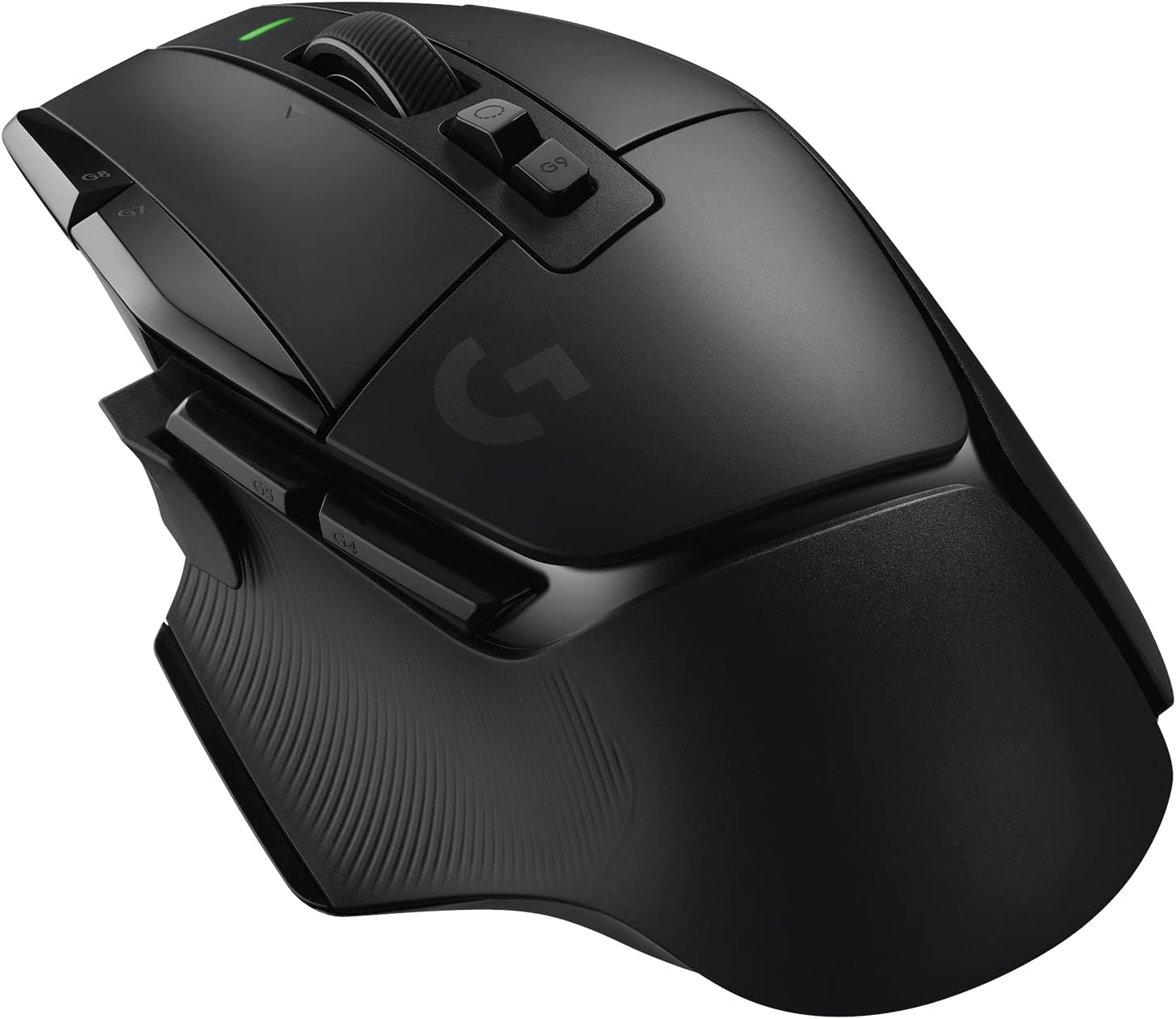
Logitech G502 X LIGHTSPEED Wireless Gaming Mouse
Shop Now on Amazon

Logitech MX Master 4 Ergonomic Wireless Mouse with Haptics
Shop Now on Amazon

Logitech Lift Vertical Ergonomic Wireless Mouse
Shop Now on Amazon

Logitech MX Anywhere 3S Compact Wireless Mouse
Shop Now on Amazon
As an Amazon Associate we earn from qualifying purchases.
3. Polling Rate Explained: 1,000 Hz vs. 4,000 Hz vs. 8,000 Hz
Polling rate is how many times per second the mouse reports its position to the computer. At 1,000 Hz it reports every 1 ms; at 4,000 Hz every 0.25 ms; at 8,000 Hz every 0.125 ms. A higher polling rate shortens the interval between reports, which can feel smoother on high-refresh displays. But it does not guarantee a noticeable improvement in every game. Whether you perceive a difference depends on the CPU load, the game engine, your frame rate, the sensor implementation, and your full system configuration — not on the mouse specification alone.
8K polling is not a guaranteed gaming-performance improvement. It does not automatically deliver higher FPS, lower end-to-end system latency in every configuration, better aim, better tracking accuracy, or a measurable competitive advantage for every player. The trade-offs matter too:
- Higher polling rates increase processing overhead, so the host system must keep up.
- Wireless high-polling modes draw more power. On the Razer DeathAdder V4 Pro, battery life drops from about 150 hours at 1,000 Hz to about 22 hours at 8,000 Hz. On the Razer Viper V4 Pro, it drops from about 180 hours at 1,000 Hz to about 45 hours at 8,000 Hz. These are manufacturer-rated figures, and real-world battery life varies with settings and usage.
- Compatibility and performance depend on the mouse, receiver, software, USB connection, and host system.
- Many users cannot reliably tell 1,000 Hz from 4,000 Hz or 8,000 Hz, so the benefit is not universal.
Among the reviewed mice, the Viper V4 Pro and DeathAdder V4 Pro support up to 8,000 Hz wired and wireless, while the Logitech G502 X LIGHTSPEED is capped at 1,000 Hz. The productivity mice are not rated for gaming polling rates, which is fine for their purpose. Do not assume every mouse supports high polling rates, and do not choose 8K merely for the specification unless your system and use case can actually take advantage of it.
4. Shape, Hand Size and Grip Style
Shape is one of the most important factors in choosing a mouse, because a mouse with excellent specifications can still feel wrong in your hand. Three grip styles dominate: palm grip (the whole hand rests on the shell), claw grip (the fingers arch and the palm rests lightly), and fingertip grip (only the fingertips touch the mouse). Hand size and mouse dimensions both matter, as does whether the shape is symmetrical or ergonomic, and whether it fits a right-handed or left-handed user. Hump position, shell width, and overall profile all change how a mouse feels.
Grip preferences and hand measurements are personal, so no single shape is universally best. The reviewed mice show different approaches:
- Razer Viper V4 Pro: a low, symmetrical profile (~127 × 64 × 40 mm) built for claw and fingertip grips. It is effectively right-handed because the side buttons sit only on the left edge, so left-handed players who need right-side buttons will not get them.
- Razer DeathAdder V4 Pro: a right-handed ergonomic shape (~128 × 68 × 44 mm) that suits palm grip and players who prefer a fuller mouse.
- Logitech G502 X LIGHTSPEED: a right-handed ergonomic shape with a generous hump and many buttons, good for a wide range of grips and hand sizes.
- Logitech MX Master 4: a hand-sculpted, right-handed ergonomic productivity shape (~128 × 88 × 51 mm).
- Logitech Lift Vertical: a vertical ergonomic mouse designed for small to medium hands, angling the hand to a 57° “handshake” position. Logitech says this reduces pressure on the wrist and forearm, but that is a manufacturer claim; we do not make medical claims about preventing or treating wrist conditions.
- Logitech MX Anywhere 3S: a compact shape (~100 × 65 × 34 mm) built for portability and travel.
We cannot recommend one shape as universally best. Try to match the shape to your grip and measured hand size, and read the ergonomics notes for the specific model you are considering.
5. Wireless vs. Wired Mice
Connection method comes in three main forms: wired USB, 2.4 GHz wireless with a dedicated receiver, and Bluetooth. Gaming-oriented wireless mice usually use a dedicated 2.4 GHz receiver (for example, Razer HyperSpeed or Logitech LIGHTSPEED), which offers a fast, stable link designed for low latency. Bluetooth is more convenient for multi-device work, but it generally has higher latency and a shorter effective range than a dedicated 2.4 GHz receiver, which is why it is better suited to office use and laptops than to competitive gaming.
Wireless latency and connection stability depend on the specific implementation, receiver placement, and USB connectivity. A modern high-end wireless mouse can match a wired mouse in feel, and a wired mouse is not automatically faster. It can also be the more practical choice if you want to avoid charging and cable-free desk clutter is less important than never thinking about battery. Wireless adds a battery to manage and, for high-polling modes, faster drain.
The reviewed mice illustrate the range:
- Razer Viper V4 Pro: Razer HyperSpeed Wireless Gen-2 (2.4 GHz) plus USB-C wired; 8K polling supported on both.
- Razer DeathAdder V4 Pro: Razer HyperSpeed Wireless Gen-2 (2.4 GHz) plus wired; 8K polling supported on both.
- Logitech G502 X LIGHTSPEED: Logitech LIGHTSPEED (2.4 GHz) plus USB-C wired, with PowerPlay wireless-charging compatibility.
- Logitech MX Master 4: Bluetooth Low Energy plus a USB-C Logitech Bolt receiver, and USB-C wired (cable not included).
- Logitech Lift Vertical: Bluetooth Low Energy plus a Logi Bolt USB receiver (up to ~10 m).
- Logitech MX Anywhere 3S: Bluetooth Low Energy plus a Logi Bolt USB receiver (up to ~10 m), pairing with up to three devices via Easy-Switch.
We do not claim one connection method is universally faster. Confirm the actual connection methods of the mouse you are considering, and think about receiver placement and whether you can use the USB port a gaming receiver needs.
6. Mouse Skates and Feet: A Small Detail That Changes the Feel
Mouse skates, sometimes called feet, are the small pads on the underside that contact the mousepad. They control friction and glide. PTFE (polytetrafluoroethylene) is a common material that provides a smooth, low-friction glide, and several reviewed mice note PTFE feet. The feel is a trade between smoothness (easy gliding), control (stopping power), and how the surface interacts with your mousepad; a faster glide is not necessarily better for every player or workload. A mousepad surface and the condition of the skates change the experience over time as skates wear and the pad ages, and replacement skates are relevant for some users who want to restore glide. We do not invent skate material, thickness, or a specific glide speed when a comparable test is not available.
In the reviewed set, the Logitech MX Anywhere 3S and the Razer Viper V4 Pro both note PTFE feet as part of their design, supporting a smooth glide. For other models, skate specifics are less central to their reviews, and we do not fabricate them.
7. Buttons, Software and Customization
Buttons and software determine how much you can tailor a mouse to your workflows. Main buttons and their switches set the click feel and durability, side buttons add reachable inputs, and the scroll wheel handles vertical scrolling and sometimes tilt or a mode switch. DPI adjustment controls, programmable buttons, profiles, onboard memory, macros, and shortcuts are features to weigh. Software ecosystems differ by brand, and not every feature is available on every operating system, so confirm what a given model supports rather than assuming all features work everywhere.
More buttons do not automatically make a mouse better; extra inputs are useful only if you will use them. The reviewed mice vary widely:
- Razer Viper V4 Pro: 6 buttons total (2 main, 2 side, scroll-wheel click, 1 extra), G optical switches rated for 100 million clicks, an optical scroll wheel, and Razer Synapse 4 (PC/macOS) with a browser-based Synapse Web option.
- Razer DeathAdder V4 Pro: about 6–8 programmable buttons (source varies) with new optical Gen-4 switches (100M rating), an optical scroll wheel, and Razer Synapse for DPI, hypershift, polling, and configuration.
- Logitech G502 X LIGHTSPEED: 13 programmable controls using LIGHTFORCE hybrid optical-mechanical switches, a dual-mode hyper-fast tilt-capable scroll wheel, up to 5 onboard profiles, and Logitech G HUB software.
- Logitech MX Master 4: 7 buttons including a gesture button, a wheel mode button, and an Actions Ring button, plus haptic feedback and the MagSpeed electromagnetic wheel; configured in Logi Options+.
- Logitech Lift Vertical: 4 customizable buttons and a SmartWheel scroll wheel, configured in Logi Options+.
- Logitech MX Anywhere 3S: 6 buttons with a MagSpeed scroll wheel and SmartShift, configured in Logi Options+.
Productivity mice emphasize workflow features such as gesture controls, scroll modes, and multi-device switching, while gaming mice emphasize remapping, onboard profiles, and polling-rate control. Choose the software and button set that matches what you will actually do.
8. Productivity vs. Gaming: Different Mice for Different Jobs
Gaming and productivity mice are built for different jobs, and treating them as interchangeable is a common error.
Gaming mice
Gaming mice prioritize sensor tracking, weight, polling rate, wireless latency, grip and shape, and gaming software. Competitive players often value low weight, a high and consistent polling rate, and a shape that matches their grip and hand size. Casual gaming has lighter requirements, but a gaming mouse still targets sensor precision and responsiveness.
Productivity mice
Productivity mice prioritize ergonomic shape, comfort during extended desktop use, scroll-wheel functionality, additional navigation controls, multi-device connectivity where supported, and productivity software and shortcuts. Battery and connectivity convenience matter because these mice are used all day.
Mandatory classification: the Logitech MX Master 4 is a productivity mouse, and the Logitech Lift is an ergonomic productivity mouse. Neither is a gaming mouse, and neither is presented as a gaming recommendation in this guide. The MX Anywhere 3S is also a productivity/portable mouse. Only the Razer Viper V4 Pro, Razer DeathAdder V4 Pro, and Logitech G502 X LIGHTSPEED are gaming mice.
Gaming specifications such as 4K or 8K polling are not the main selection criteria for a productivity mouse, which does not need them. We do not compare productivity and gaming products using a single performance hierarchy, because they serve different purposes and different users.
9. Common Mouse Buying Mistakes
- Choosing a mouse based only on maximum DPI. DPI maxima are far above what anyone needs; tracking consistency matters more.
- Assuming a higher DPI means a better sensor. DPI is sensitivity, not sensor quality.
- Buying a mouse without considering hand size and grip. Shape is the top comfort factor.
- Assuming the lightest mouse is always best. Weight interacts with grip, sensitivity, and preference.
- Paying extra for 8K polling without checking whether your system and use case can benefit. 8K does not guarantee an improvement for every player.
- Assuming 8K guarantees better aim or higher FPS. It does not.
- Ignoring battery-life trade-offs at higher polling rates. High polling can cut wireless battery life dramatically.
- Confusing Bluetooth with dedicated 2.4 GHz gaming connectivity. They differ in latency and range.
- Assuming all wireless mice have the same latency. Implementation matters.
- Ignoring mouse shape and ergonomics. A comfortable fit prevents fatigue.
- Choosing a mouse based only on the number of buttons. Extra buttons are useful only if you use them.
- Treating productivity mice as gaming alternatives. The MX Master 4 and Lift are not gaming mice.
- Buying a mouse without considering software compatibility. Features may be OS-dependent.
- Overlooking the influence of mousepad surface and skate condition. Both change how a mouse glides.
10. Final Considerations: Choosing the Right Mouse
Make your decision in this order:
- Intended use: gaming or productivity. Decide this first, because it sets every other priority.
- Sensor quality and practical DPI requirements. Choose a current flagship sensor; do not chase DPI numbers.
- Weight and handling. Pick light for competitive gaming, heftier for all-day desk work.
- Shape, hand size and grip. Match the mouse to your measured hand and grip style.
- Polling rate and system compatibility. Choose high polling only if your system and games benefit.
- Wired versus wireless connectivity. Decide whether to manage a battery and a receiver.
- Battery-life requirements. Check battery life at the polling rate you plan to use.
- Skates and surface preference. Consider glide, control, and your mousepad.
- Buttons and software. Match inputs and software to your workflows.
- Comfort over long sessions. The right shape and weight make a mouse feel like an extension of your hand.
For product-specific gaming mouse comparisons and recommendations across the three reviewed gaming models, see our Best Gaming Mice guide, which keeps gaming and productivity mice separate and ranks only dedicated gaming mice. The individual reviews — the Razer Viper V4 Pro, Razer DeathAdder V4 Pro, Logitech G502 X LIGHTSPEED, Logitech MX Master 4, Logitech Lift Vertical, and Logitech MX Anywhere 3S — go deeper on each model.
Related guides
- Best Gaming Mice
- How to Choose a Mechanical Keyboard (2026 Buyer’s Guide)
- How to Choose a Headset (2026 Buyer’s Guide)
- PC Builder — Compatibility-Checked Builds
How to choose: How to Choose a Mouse (2026 Buyer’s Guide)
Step-by-step decision guide: How to Choose a Mouse (2026 Buyer’s Guide).
- Decide first whether the mouse is for gaming or productivity; do not mix the two categories.
- Choose a current sensor and a comfortable sensitivity; maximum DPI is not a measure of sensor quality.
- Match weight and shape to your grip style and hand size instead of assuming lighter is always better.
- Treat high polling rates as system-dependent; check battery cost and compatibility before choosing 8K.
- Prefer a dedicated 2.4 GHz receiver for gaming and Bluetooth for multi-device office or travel use.
- Check skates, button layout, software support and battery life at the polling rate you will actually use.
Note: Prices and availability change frequently. Always verify the latest price and configuration on the Amazon product page before purchasing.