Logitech MX Master 4 Review: Haptics and an Actions Ring Refine a Productivity Icon
The Logitech MX Master 4 is the latest flagship wireless mouse in Logitech’s Master series, the line that has long defined the “productivity mouse” category. Built for desk-bound professionals, it keeps the hand-sculpted, right-handed ergonomic shape that made the MX Master 3S a five-star favorite, and adds three headline features: haptic feedback, a new gesture button, and an “Actions Ring” on-screen shortcut menu. It also brings a faster sensor, quieter clicks, upgraded wireless connectivity, and a USB-C receiver.
This review centers on two practical questions. First, does the MX Master 4 meaningfully improve on the already-excellent Master 3S? Second, who actually benefits from the new haptics and Actions Ring — and who would be better served by a cheaper or older model? We’ll cover the design, the new features, real-world performance, battery life, and alternatives.
Quick Verdict
- Best for: Professionals who spend long hours in productivity apps — creative work, CAD, spreadsheets, multitasking across devices — and want a premium, fully customizable mouse with shortcut-at-cursor efficiency.
- Main strengths:
- The Actions Ring and gesture button genuinely speed up common workflows once configured.
- Haptic feedback adds satisfying tactile confirmation to actions and shortcuts, with adjustable intensity.
- Excellent ergonomics, quieter-than-ever clicks, and smooth glide.
- 8,000 DPI Darkfield sensor tracks on almost any surface, including glass.
- Long battery life and fast top-up charging; pairs easily with up to three devices.
- Main limitations:
- Right-handed only — left-handed users are not served.
- No on-device storage for the USB receiver, and no charging cable in the box.
- Full feature set depends on the Logi Options+ app plus plugins, which was limited at launch.
- Haptics and the new button placement have a small learning curve; accidental gesture-button presses are reported during adaptation.
- Value assessment: The MX Master 4 sits at the top of the productivity-mouse market. Its value is highest for people who will actually use the shortcuts, haptics, and multi-device workflow. If you don’t need those, the older Master 3S offers most of the same core experience for less.
- Verdict: The MX Master 4 is an excellent upgrade for heavy productivity users and a strong first buy if you’ve never owned an MX Master. It’s a premium purchase, so compare it against the Master 3S and check the Amazon listing for the current price before deciding.
Shop Now

As an Amazon Associate we earn from qualifying purchases.
Key Specifications
| Specification | Detail |
|---|---|
| Model | Logitech MX Master 4 (Graphite; also Pale Grey and Black; Mac variant in Space Black / White Silver) |
| Hand orientation | Right-handed |
| Sensor | Logitech Darkfield optical sensor, up to 8,000 DPI; tracks on glass (min. ~4 mm) |
| Buttons | 7 total (left/right click, scroll wheel, wheel mode button, back/forward, gesture button, Actions Ring button) |
| Scroll wheel | MagSpeed electromagnetic wheel — ratchet and hyper-fast modes; repeat 1,000 lines/sec |
| Haptic feedback | Adjustable intensity (subtle/low/medium/high); customizable via Logi Options+ |
| Connectivity | Bluetooth Low Energy + USB-C Logitech Bolt receiver + USB-C wired (cable not included) |
| Multi-device | Easy-Switch — up to 3 devices; Logi Flow cross-computer file/text transfer |
| Battery | Internal rechargeable; rated up to ~70 days (manufacturer); ~3 hours of use from a 1-minute charge |
| Dimensions | ≈ 128 × 88 × 51 mm (5.0 × 3.4 × 2.0 in) |
| Weight | ≈ 150 g (5.2 oz) |
| Polling rate | 125 Hz (manufacturer spec) |
| Software | Logi Options+ (required for full customization and workflows) |
| Sustainability | Recycled plastic parts; 100% recycled cobalt in battery; improved stain resistance |
| Compatibility | Windows, macOS (13+), Linux, ChromeOS, iPadOS (15+), Android (12+) |
Battery life is quoted from Logitech’s manufacturer rating; see the Performance section and Part D for an independent-test discrepancy.
Design and Build Quality
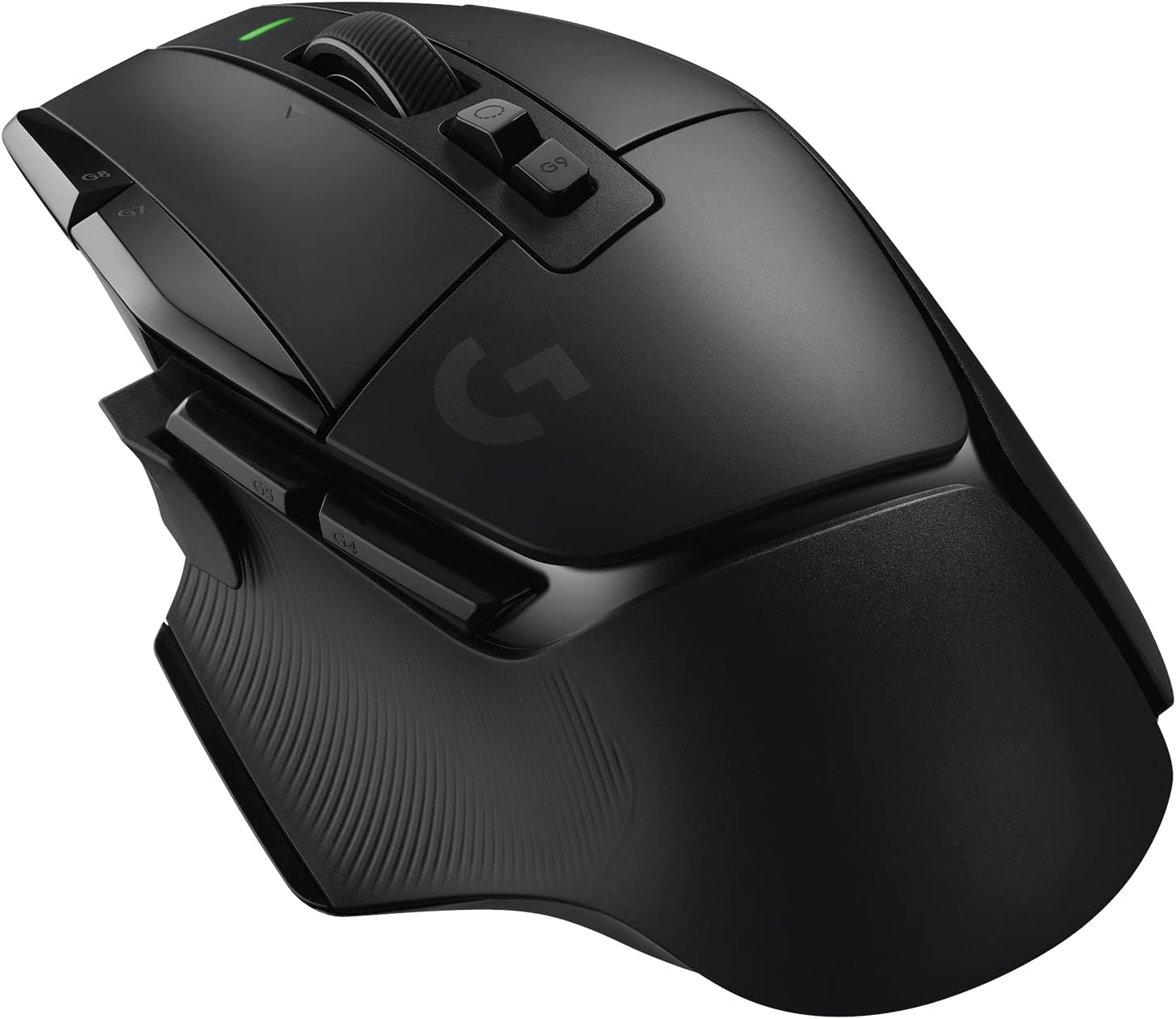
The MX Master 4 keeps the sculpted, asymmetrical shape that made its predecessor a comfort benchmark. It is a large, right-handed mouse built for palm and claw grips, and reviewers consistently praise how it fills the hand over long sessions. The most visible change is material: Logitech cut back the rubber-textured grip that covered the Master 3S, limiting it to the right flank and a wing that now houses the Actions Ring button. The result feels smooth and premium, and the new plastic finish showed no signs of wear over extended use in Engadget’s long-term testing.
Several physical details improved. The left and right clickers now loop around the scroll wheel, giving more surface for your pointer and middle fingers. The thumb buttons protrude further, making them easier to find, and a dedicated Actions Ring button sits under your thumb. The MagSpeed scroll wheel — a machined steel electromagnetic wheel with both ratchet and hyper-fast modes — returns at the top, and a small button above it toggles between scroll styles. The side thumb wheel also returns for horizontal scrolling.
Underneath, the PTFE feet were widened around the edges and the sensor, which PCMag noted makes every movement feel smoother. The mouse measures about 5.0 by 3.4 by 2.0 inches and weighs roughly 5.2 ounces — slightly larger and heavier than the Master 3S, but still comfortable for desktop use. The surface is more stain-resistant than previous models, a small but practical improvement. Build quality feels sturdy and well-finished.
One ergonomic caveat: this is a right-handed mouse. Left-handed users are not served by the design, and Logitech does not offer a left-handed version.
Features and Technology
The MX Master 4’s headline additions are where most of the value lies, but they require Logitech’s Logi Options+ software to unlock.
- Haptic feedback. The mouse contains a haptic motor that provides tactile vibrations for specific actions, shortcuts, and notifications — switching desktops, slider adjustments, snapping images to a grid, and more. You can choose one of four intensity levels (subtle, low, medium, high) or disable haptics. Stronger vibrations use more battery, and there’s a battery-saving mode. Some reviewers call haptics a “nice-to-have” rather than essential, but as a confirmation cue for actions it’s genuinely useful.
- Actions Ring. Pressing the dedicated side button launches a radial on-screen menu at your cursor with up to eight shortcuts or tools. The menu is app-aware, so it can show different options in Chrome, Photoshop, or Excel, and you can download plugins for third-party apps. Logitech claims this can save up to 33% of your time and cut mouse movements by up to 63% — figures from Logitech’s own Ergo Lab study, so treat them as directional rather than independently proven.
- Gesture button. A new third button on the side row adds gesture controls: press and hold it while sliding the mouse to trigger actions like showing the desktop or opening the start menu. Reviewers note the gesture button sits close to the back/forward buttons, so some accidental presses happen during the adjustment period.
- 8,000 DPI Darkfield sensor. Logitech’s most accurate sensor tracks on virtually any surface, including glass at least ~4 mm thick. This is the same sensor family as the Master 3S, but combined with the widened feet it feels smoother in practice.
- Upgraded wireless. Logitech repositioned the internal antenna and added a new high-performance chip, claiming 2x more powerful connectivity. The mouse pairs over Bluetooth Low Energy or via a USB-C Logitech Bolt receiver, which can connect up to two Logitech devices at once.
- Multi-device workflows. Easy-Switch lets you toggle among three paired devices with a button press, and Logi Flow lets you move the cursor across two computers and drag files or text between them.
None of the multi-device, sensor, or scrolling features are brand-new to the series — they’re refinements. The genuinely new additions are haptics, the gesture button, and the Actions Ring.
Performance and Real-World Use
The MX Master 4 is not a gaming mouse; it’s built for precision and comfort in productivity work. Within that role, reviewers agree it performs exceptionally.
- Comfort and ergonomics. PCMag, Engadget, and others describe it as feeling excellent in the hand, with a smooth glide enabled by the widened PTFE feet. The hand-sculpted shape is one of the most comfortable in the category for long sessions.
- Sensor tracking. The 8,000 DPI Darkfield sensor tracks reliably on mousepads, desks, and glass. There’s no performance downside for typical office, creative, or spreadsheet work — the sensor is more than precise enough for large monitors and pixel-level tasks.
- Clicks and scroll. The clicks are dramatically quieter than previous models — Logitech claims 90% quieter — while retaining a satisfying feel. The MagSpeed wheel is smooth and quiet in both ratchet and hyper-fast modes, and 1,000-line-per-second hyper-fast scrolling is genuinely useful for long documents.
- Wireless reliability. PCMag notes Logitech’s 2x connectivity claim is hard to verify independently but reports the connection as stable. LTT Labs measured higher-than-ideal latency over Bluetooth LE (averaging ~11.7 ms with occasional stutters), which matters for precise work but is typical for a productivity mouse; using the Bolt receiver or wired USB gives the most stable connection.
- Battery. Logitech rates the internal battery at up to ~70 days, with about three hours of use from a one-minute charge. This is the biggest point of conflict in the evidence: PCMag’s hands-on testing suggested roughly 70 hours per charge rather than 70 days. Battery life depends heavily on haptic intensity, polling, and usage, so expect meaningful variation. A charging cable is not included, so use a USB-C cable you already own or a charger.
- Learning curve. The new gesture button and Actions Ring take some getting used to, and several reviewers reported occasional accidental gesture triggers at first. After an adjustment period, most found the optimized placements natural.
For its intended audience — people who live in productivity apps — the MX Master 4 is fast, quiet, and precise. It is not suited to competitive gaming, where its 125 Hz polling and weight would be drawbacks.
Compatibility and Installation
- Operating systems: Works with Windows (11 recommended; Windows 10 via Bolt receiver, not Bluetooth), macOS 13 or later, Linux, ChromeOS, iPadOS 15 or later, and Android 12 or later.
- Software: Logi Options+ is required to configure haptics, the Actions Ring, gestures, and shortcuts. It’s free for Windows and macOS.
- Setup: Pair over Bluetooth or plug the the-C Bolt receiver into a USB-C port. The mouse is rechargeable via its USB-C port (cable not included).
- Space/ergonomics: A right-handed design; allow room for the wide, sculpted body and ensure you’re comfortable with its size before buying.
Advantages and Disadvantages
Advantages
– Outstanding ergonomics for right-handed productivity users.
– Haptic feedback with adjustable intensity adds tactile confirmation.
– Actions Ring and gesture button speed up workflows once configured.
– 8,000 DPI sensor tracks on glass and virtually any surface.
– Very quiet clicks and a smooth, satisfying MagSpeed wheel.
– Up to 70-day rated battery with fast top-up charging.
– Easy-Switch for three devices and Logi Flow cross-computer control.
– Sustainable materials, including 100% recycled cobalt in the battery.
Disadvantages
– Right-handed only — no left-handed variant.
– No on-device storage for the USB receiver; no charging cable included.
– Full feature set depends on Logi Options+ and third-party plugins.
– Battery-life claims vary by source and usage; haptics drain it faster.
– New gesture button placement can cause accidental presses during adaptation.
– Not suited to gaming (125 Hz polling, heavier weight).
Price and Value for Money
The MX Master 4 sits at the top of the productivity-mouse price range. Whether it’s worth it depends on how much you’ll use what makes it special. If you’re a creative professional, heavy multitasker, or spreadsheet/CAD user who will configure the Actions Ring and gestures, the added convenience can be substantial — the premium over a standard mouse is reasonable for someone who uses it eight hours a day. If you only need a comfortable wireless mouse and won’t dig into Logi Options+, the cheaper MX Master 3S delivers most of the same core experience, making the 4 a harder sell.
Because pricing varies by seller and over time, check the product listing on Amazon for the latest price and availability before purchasing. Amazon prices and availability can change.
Best Alternatives and Comparisons
| Alternative | Why it’s relevant | Main advantage over MX Master 4 | Trade-off |
|---|---|---|---|
| Logitech MX Master 3S | The previous flagship; same shape and sensor family | Usually lower-priced; same comfort, silent clicks, and 8K DPI sensor | No haptics, gesture button, or Actions Ring |
| Logitech MX Anywhere 3S | Compact companion mouse for travel | Smaller, lighter, and more portable | Smaller shape not ideal for large hands; fewer thumb controls |
| Logitech MX Vertical | Vertical ergonomic mouse | Promotes a more upright wrist posture to reduce forearm strain | Vertical grip has a steeper learning curve; fewer features |
| Razer Pro Click V2 | Premium productivity/mouse hybrid | Solid build and productivity features with a wider feature set option | Different button layout; less integrated app-specific shortcut ecosystem |
Which is right depends on priorities. If you want the newest features and shortcut-driven workflow, the MX Master 4 is the choice. If you want most of the experience for less, the Master 3S is the value pick. If wrist posture is your main concern, the MX Vertical is worth a look. Compare current pricing on the relevant Amazon listings.
Who Should Buy It?
- Creative professionals — designers, video editors, and photographers who can map Actions Ring shortcuts and haptics to their tools.
- Heavy multitaskers — people juggling multiple apps and machines who’ll use Easy-Switch and Logi Flow.
- CAD and spreadsheet users — anyone who benefits from precise, customizable cursor-level shortcuts.
- Desk-bound workers — people who want a premium, comfortable mouse for eight-hour days and are willing to invest in configuration.
- Upgraders from older MX models — Master 2S owners especially will notice the step up in sensor, quietness, and features.
Who Should Consider Something Else?
- Left-handed users — there is no left-handed version of the MX Master 4; a symmetric or left-friendly mouse is needed.
- Budget-conscious buyers — if you won’t use the new shortcuts, the MX Master 3S gives most of the experience for less.
- Gamers — the 125 Hz polling and heavy, ergonomic build aren’t suited to competitive gaming.
- Portability-first users — if you travel light, a smaller mouse like the MX Anywhere 3S is easier to carry.
Final Verdict
The Logitech MX Master 4’s strongest selling point is that it improves on an already near-perfect productivity mouse: haptic feedback, a gesture button, and the Actions Ring add genuine workflow value for those who configure them, while the sensor, click quietness, and build all get refinements. Its main limitation is that much of that new value depends on setup and app plugins, and the battery-life claims vary in real-world testing. Its intended buyer is a right-handed professional who wants a premium, customizable wireless mouse for serious desk work.
The deciding factor should be whether you’ll actually use the new features. If you will, the MX Master 4 is arguably the best productivity mouse available, earning PCMag’s five-star rating and Editors’ Choice for Best Mouse for Work. If you won’t, the Master 3S is the smarter value. Either way, check the Amazon listing for the current price and availability, which can change.
Check the Latest Price on Amazon
Disclosure: componentcrate may earn a commission from qualifying purchases made through links in this article, at no additional cost to you.
Frequently Asked Questions
Is the Logitech MX Master 4 worth buying?
Yes, for right-handed professionals who will use its workflow features — the Actions Ring, gestures, and haptics — and who value premium ergonomics. It earned five-star ratings from PCMag and praise from Engadget. If you won’t configure the shortcuts or want to save money, the MX Master 3S is the value alternative. Check the Amazon listing for the current price.
Who is the MX Master 4 best suited for?
Creative professionals, heavy multitaskers, CAD and spreadsheet users, and anyone who spends long hours at a desk and wants a customizable, comfortable wireless mouse. It is right-handed only, so left-handed users should look elsewhere.
What are the main limitations of the MX Master 4?
It is right-handed only, has no on-device storage for its USB receiver, and doesn’t include a charging cable. Its full feature set depends on the Logi Options+ app and third-party plugins, and the new gesture button can cause accidental presses at first. It’s not built for competitive gaming.
How does the MX Master 4 compare with the MX Master 3S?
The 4 adds haptic feedback, a gesture button, and the Actions Ring, and refines the design with smoother glide and quieter clicks. It uses the same 8,000 DPI Darkfield sensor family and similar ergonomics. The 3S offers most of the core experience for a lower price, so the 4 is worth the premium mainly if you’ll use the new features.
Does the MX Master 4 track on glass?
Yes. Its 8,000 DPI Logitech Darkfield sensor is designed to track on virtually any surface, including glass at least about 4 mm thick. This makes it usable without a mousepad in most settings.
How long does the MX Master 4 battery last?
Logitech rates it at up to about 70 days, with roughly three hours of use from a one-minute charge. Independent testing has suggested closer to 70 hours in some conditions. Actual battery life varies with haptic intensity, polling, and usage; stronger vibrations drain the battery faster. A charging cable is not included.
What software does the MX Master 4 require?
For advanced customization — haptics, the Actions Ring, gestures, shortcuts, and app profiles — you need Logitech’s free Logi Options+ app, available for Windows and macOS. Basic pairing and scrolling work without it, but most headline features are disabled until the app is installed.
Is the MX Master 4 compatible with Mac and Windows?
Yes. It works with Windows (11 recommended; Windows 10 via the Bolt receiver, not Bluetooth), macOS 13 or later, Linux, ChromeOS, iPadOS 15 or later, and Android 12 or later. Easy-Switch lets you pair it with up to three devices and switch between them.
Where can I check the current price of the MX Master 4?
Amazon holds the current price and availability, and both can change over time. Use the link in this article to view the product listing on Amazon and confirm the latest price before purchasing.
What alternatives should I consider?
The Logitech MX Master 3S offers most of the same ergonomics and sensor performance for a lower price. The MX Anywhere 3S is a compact travel option, the MX Vertical suits those wanting a more upright wrist posture, and the Razer Pro Click V2 is a premium alternative with a different layout. Choose based on whether you need the new features, portability, or vertical ergonomics.