Uncategorized

Affiliate Disclosure: ComponentCrate participates in the Amazon Associates Program. As an Amazon Associate, I earn from qualifying purchases. We may receive a commission when you purchase through qualifying links, at no additional cost to you. Full disclosure

Category: Uncategorized

Welcome to our mouse reviews hub, where you’ll find every mouse we’ve tested — from wireless esports and ergonomic gaming models to productivity flagships and compact travel mice. Each card below links to a full review with sensor specs, connectivity notes and a verdict; the market overview sorts the range by intended use so you can jump straight to the category that fits your gaming, workflow or portability needs.

As an Amazon Associate, I earn from qualifying purchases.

Latest Reviews

Logitech MX Master 4

Logitech’s flagship productivity mouse refines an already-excellent icon with haptics, an Actions Ring and a faster sensor for desk-bound professionals.

Read the full review →

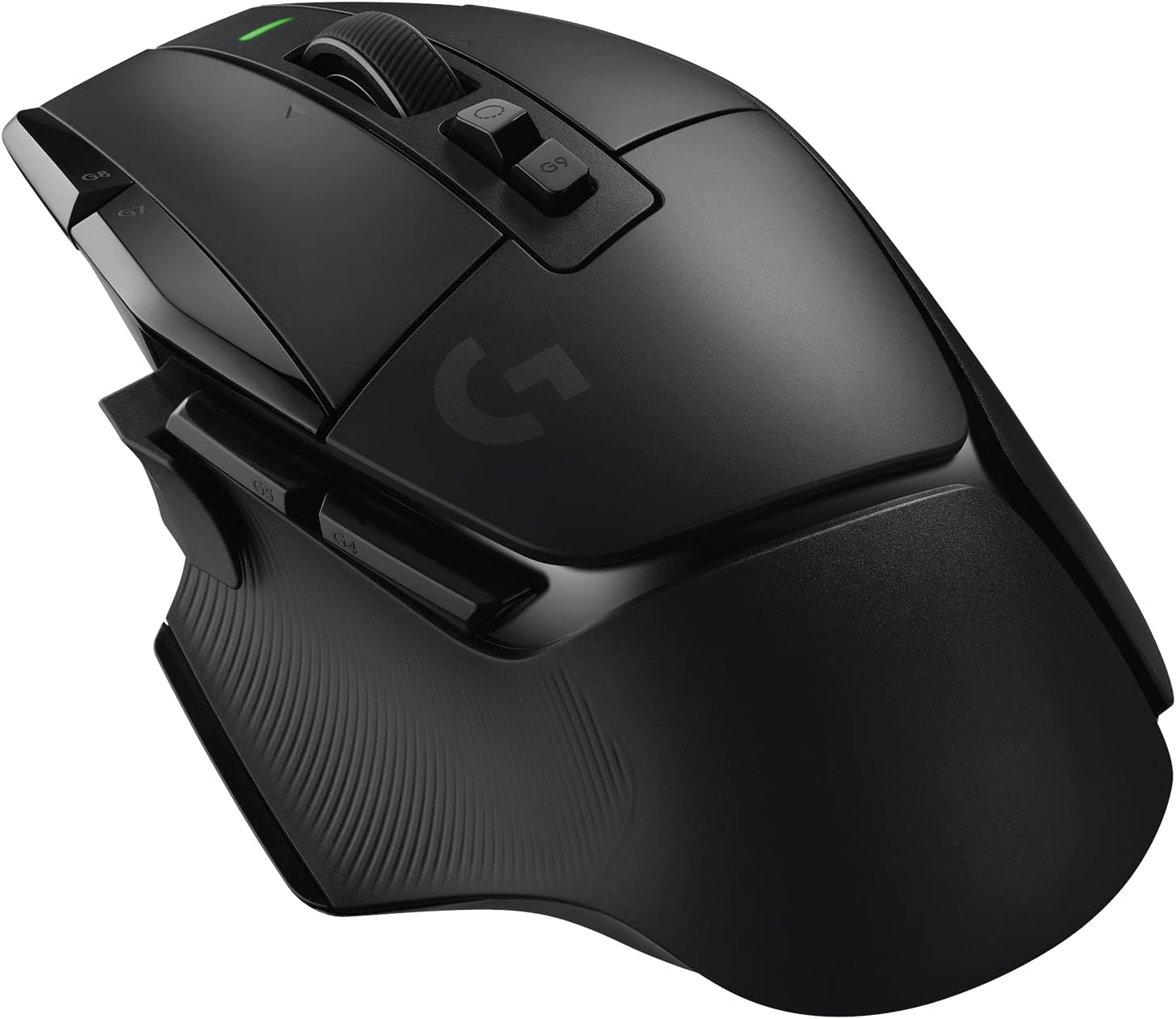
Logitech G502 X LIGHTSPEED

The iconic G502, rebuilt and wireless, remains a comfortable, feature-rich all-rounder gaming mouse for players who want many buttons without an ultralight frame.

Read the full review →

Logitech Lift Vertical Ergonomic Mouse

A comfortable vertical ergonomic mouse that earns strong consideration for office and home productivity users with small to medium hands.

Read the full review →

Logitech MX Anywhere 3S

A top-tier compact travel mouse that delivers on its “anywhere” promise with a Darkfield sensor that tracks on glass and other surfaces.

Read the full review →

Razer DeathAdder V4 Pro

An ultra-lightweight ergonomic esports mouse with a class-leading sensor and 8K polling, provided you accept the ~22-hour battery trade-off at 8K.

Read the full review →

Razer Viper V4 Pro

A 49g symmetrical esports mouse that packs a 50K sensor, optical switches and 8K polling — a serious contender for competitive claw and fingertip players.

Read the full review →

The 2026 Mouse Market at a Glance

Segment Reviewed products Best For Reviewed?
Wireless Esports Mice Razer Viper V4 Pro Competitive FPS and esports players using claw or fingertip grips who want an ultralight symmetrical wireless mouse with elite sensor specs. Review
Ergonomic Gaming Mice Logitech G502 X LIGHTSPEED, Razer DeathAdder V4 Pro Gamers who want a comfortable, feature-rich gaming mouse — more buttons and a fuller shape for all-round play, or a proven ergonomic silhouette for competitive FPS. Review · Review
Productivity Mice Logitech MX Master 4, Logitech Lift Professionals and office users who prioritize workflow controls, comfort and multi-device flow over esports performance. Review · Review
Portable Mice Logitech MX Anywhere 3S Mobile professionals and frequent travelers who need a compact, high-precision mouse that works on any surface and pairs with multiple devices. Review

Note on classification: this table groups each mouse by its primary intended use and source-review positioning. The Razer Viper V4 Pro is a symmetrical, ultralight esports mouse. The Logitech G502 X LIGHTSPEED and Razer DeathAdder V4 Pro are gaming mice with an ergonomic, feature-rich shape. The Logitech MX Master 4 and Logitech Lift are productivity mice — they are not gaming mice, even though they are wireless and (in the Lift’s case) ergonomic. Being usable in general is not the same as being designed for competitive gaming, and these two are not positioned or specified for esports play. The Logitech MX Anywhere 3S is a portable productivity mouse, not a gaming peripheral. Do not evaluate these distinct categories with identical criteria.

Not Sure Which Mouse to Buy?

If you’re still deciding, our mouse buying guide explains sensor types, ergonomics, connectivity, battery and software so you can match a mouse to your needs. For gamers specifically, our best gaming mice pillar compares mice designed for competitive play — esports and ergonomic gaming options. The gaming pillar is the right resource for gaming-mouse selection; the productivity and portable mice in this hub (MX Master 4, Lift and MX Anywhere 3S) are evaluated around workflow controls, comfort, navigation and software features rather than esports performance. The six full reviews above provide detailed product-level findings and limitations.

Frequently Asked Questions

What should buyers look for in a wireless esports mouse?
Focus on weight, sensor, polling rate and grip for competitive play — like the Razer Viper V4 Pro’s 49g build, 50K sensor and 8K polling, or the DeathAdder V4 Pro’s ergonomic 56g shape. Esports mice are built for fast, flick-heavy aim. Note that high polling rates like 8K cut battery life considerably (about 22–45 hours in these Razer models), so consider whether you will actually use them.

What is the difference between an ergonomic gaming mouse and an ergonomic productivity mouse?
Both may share a comfortable shape, but they target different priorities. An ergonomic gaming mouse like the Logitech G502 X or Razer DeathAdder V4 Pro pairs comfort with gaming-grade sensor specs, adjustable polling and gaming software. An ergonomic productivity mouse like the Logitech Lift is designed for office comfort, quiet clicks and long battery life, with a productivity-grade sensor — it is not positioned for competitive play.

Is the Logitech MX Master 4 designed for gaming?
No. The MX Master 4 is a productivity mouse built for workflow control, haptic feedback, an Actions Ring and desktop multitasking. Its positioning and features target desk-bound professionals, not competitive gaming, and it should not be evaluated as a gaming mouse.

Is the Logitech Lift a gaming mouse?
No. The Lift is an ergonomic productivity mouse aimed at office and home users with small to medium hands. Its 4,000 DPI sensor and 57° vertical design fit productivity work, not high-precision gaming. It is not designed or positioned for esports play.

What features matter most in a productivity mouse?
Workflow controls, comfort, navigation and software matter most — as with the MX Master 4’s haptics and Actions Ring, the Lift’s ergonomic angle, and smart scrolling, multi-device switching and customization software. Productivity mice should be judged on these factors rather than on esports-style sensor or polling metrics.

What should buyers consider when choosing a portable mouse?
Size, weight, surface tracking and battery are key. The Logitech MX Anywhere 3S is compact, tracks on glass via its Darkfield sensor, and pairs with up to three devices — ideal for travel. Confirm the shape suits your hand, since a small portable mouse may not suit large hands for extended use.
Category: Uncategorized

Welcome to our keyboard reviews hub, where you’ll find every keyboard we’ve tested — from magnetic Hall Effect gaming boards and full-size mechanical wireless options to low-profile TKL boards and comfortable office keyboards. Each card below links to a full review with specs, connectivity notes and a verdict; the market overview sorts the range by intended use so you can jump straight to the category that fits your gaming, typing or ergonomic needs.

As an Amazon Associate, I earn from qualifying purchases.

Latest Reviews

Keychron K2 HE

A feature-dense 75% magnetic Hall Effect board whose adjustable actuation, Rapid Trigger and analog input shine for competitive gamers — provided you use the software and accept magnetic-only switches.

Read the full review →

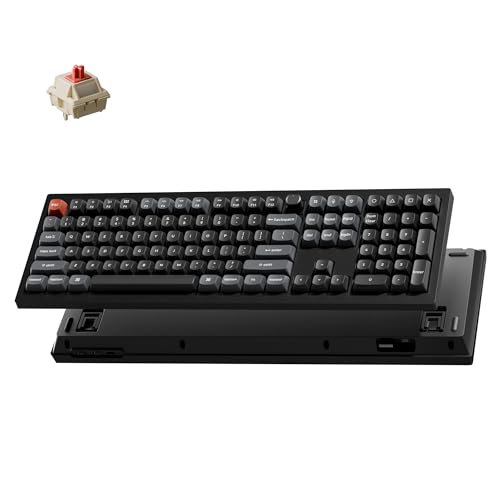
Keychron V6 Ultra 8K

A full-size wireless mechanical board that pairs a complete number pad with 8K polling in 2.4GHz mode, though its non-shine-through keycaps mean the RGB doesn’t light the legends.

Read the full review →

Logitech ERGO K860

A proven split ergonomic pick for long typing days, offering genuine wrist comfort and a full-size layout — but the split is fixed and the keys are membrane-style rather than mechanical.

Read the full review →

Logitech G515 LIGHTSPEED TKL

A slim low-profile wireless TKL gaming board that delivers most of the G915 experience in a slimmer design — just decide on tactile or linear at purchase since the switches are soldered.

Read the full review →

Logitech MX Keys S

A quiet, comfortable low-profile productivity keyboard with smart backlighting and Smart Actions automation — best if you’ll use Logi Options+ and don’t need mechanical switches.

Read the full review →

The 2026 Keyboard Market at a Glance

Segment Reviewed products Best For Reviewed?
Magnetic Gaming Keyboards Keychron K2 HE Competitive and enthusiast gamers who want adjustable actuation, Rapid Trigger and analog-style input in a compact wireless board. Review
Mechanical Gaming Keyboards Keychron V6 Ultra 8K Gamers and professionals who want a full-size layout with a number pad plus low-latency wireless polling and hot-swap switches. Review
Wireless TKL Keyboards Logitech G515 LIGHTSPEED TKL Gamers and hybrid work/play users who want a slim, desk-friendly tenkeyless wireless board without flagship hardware. Review
Office and Ergonomic Keyboards Logitech ERGO K860, Logitech MX Keys S Long-hours typists, office and remote workers who prioritize comfort, quiet typing and multi-device flow over gaming features. Review · Review

Note on classification: this table groups each keyboard by its primary intended use. The Keychron K2 HE is a magnetic Hall Effect board aimed at competitive gaming. The Keychron V6 Ultra 8K is a mechanical full-size board marketed for gaming and office use, classified here for its mechanical switches and gaming-focused 8K wireless polling. The Logitech G515 is a low-profile wireless TKL gaming keyboard, grouped by its tenkeyless form factor and wireless design. The Logitech ERGO K860 and Logitech MX Keys S are office, ergonomic and productivity keyboards — they are not gaming keyboards, even though they offer wireless connectivity, programmable functions or backlighting. Being usable for gaming is not the same as being designed as a gaming keyboard, and these two are not positioned or specified for competitive play.

Not Sure Which Keyboard to Buy?

If you’re still deciding, our keyboard buying guide explains layouts, switch types, connectivity, typing feel and ergonomic considerations so you can match a board to your setup. For gamers specifically, our best gaming keyboards pillar compares keyboards designed for competitive play — magnetic, mechanical and low-profile options. The office and ergonomic keyboards in this hub (the ERGO K860 and MX Keys S) serve different priorities, so use the gaming pillar for gaming selection and these guides for productivity and comfort. The five full reviews above provide detailed product-level findings and limitations.

Frequently Asked Questions

What is the difference between a mechanical and a magnetic gaming keyboard?
A mechanical keyboard uses physical switch contacts that close when a key is pressed — like the Keychron V6 Ultra 8K’s Silk POM Red switches. A magnetic (Hall Effect) keyboard uses a magnetic sensor to measure press depth with no physical contact, as on the Keychron K2 HE. Magnetic boards support adjustable actuation points, Rapid Trigger and analog-style input, but they are typically compatible only with magnetic switches. Mechanical boards offer broader switch compatibility and a more traditional feel.

What is a Hall Effect keyboard?
A Hall Effect (magnetic) keyboard detects key presses with a magnetic sensor rather than an electrical contact. This lets it measure how far a key is pressed, enabling features like adjustable actuation, Rapid Trigger and analog input. The Keychron K2 HE is the magnetic example in this hub, using TMR sensors and hot-swappable magnetic switches — and it only works with compatible magnetic switches, not standard mechanical ones.

Is a TKL keyboard better for gaming?
Not automatically. TKL (tenkeyless) is a form factor that removes the number pad to free desk space and mouse room, which many gamers prefer — the Logitech G515 is a TKL example. But a TKL layout is not a guarantee of gaming performance; what matters is the switch technology, latency, and whether the keyboard is designed and positioned for gaming. A full-size board like the Keychron V6 Ultra 8K can be just as gaming-focused.

Are wireless keyboards suitable for gaming?
Yes, when they use a low-latency wireless standard like 2.4GHz. The Keychron K2 HE (1000Hz), Keychron V6 Ultra 8K (8K polling in 2.4GHz) and Logitech G515 (LIGHTSPEED, up to 1000Hz) are gaming keyboards with wireless modes. Bluetooth is generally more convenient for multi-device use than for competitive play. These are documented wireless gaming keyboards, unlike the office keyboards in this hub.

What should I look for in an ergonomic office keyboard?
Look for a layout and design aimed at reducing wrist and shoulder strain over long sessions — like the Logitech ERGO K860’s fixed split curved keyframe and cushioned palm rest, or a comfortable low-profile quiet typing feel as on the Logitech MX Keys S. Consider key feel (membrane versus mechanical), multi-device switching, backlighting needs and software customization. These are productivity choices, not gaming choices.

Is a productivity keyboard suitable for gaming?
It can be usable, but it is not designed or positioned for gaming. The Logitech ERGO K860 and Logitech MX Keys S are office and productivity keyboards — they are not marketed with gaming polling rates, gaming switch options or competitive features, so they should not be chosen as gaming keyboards. For gaming selection, use our best gaming keyboards pillar and the gaming keyboards in this hub.

Category: Uncategorized

Welcome to our external SSD reviews hub, where you’ll find every portable drive and external storage product we’ve tested — from USB4 and USB 3.2 portable SSDs to rugged field drives and everyday external hard drives. Each card below links to a full review with real-world speeds, compatibility notes and a verdict; the market overview sorts the range by interface and intended use so you can jump straight to the category that fits your hardware and workflow.

As an Amazon Associate, I earn from qualifying purchases.

Latest Reviews

Crucial X10 Pro 2TB

A compact, well-warrantied 20Gbps portable SSD that only earns its premium on a native USB 3.2 Gen 2×2 host — otherwise it runs no faster than a standard 10Gbps drive.

Read the full review →

Kingston XS2000 1TB

An excellent near-Thunderbolt performer on a Gen 2×2 port that halves to roughly 1,000 MB/s on Macs and Thunderbolt/USB4 hosts, with no hardware encryption.

Read the full review →

LaCie Rugged USB-C 4TB

A rugged 4TB hard drive built for transport and backup rather than speed, with drop, crush and weather resistance plus data-recovery coverage — but sequential transfers cap around 100–135 MB/s.

Read the full review →

Lexar ES5 Magnetic SSD 2TB

A purpose-built magnetic drive for iPhone filmmakers that records ProRes directly, though its headline 2,000 MB/s only appears on a USB 3.2 Gen 2×2 PC host.

Read the full review →

Samsung T7 Shield 1TB

A proven rugged 10Gbps SSD with IP65 protection, 3-meter drops and hardware encryption, though its 3-year warranty trails several rivals’ 5-year coverage.

Read the full review →

Samsung T9 1TB

A fast, 5-year-warrantied 20Gbps SSD that doubles T7 throughput only on a Gen 2×2 or USB4 host, and carries no IP dust/water rating.

Read the full review →

SanDisk Extreme PRO USB4 4TB

A rare rugged 4TB USB4 drive with strong burst reads, but it requires a USB4 host and struggles with sustained writes and small-file random performance.

Read the full review →

WD My Passport SSD 4TB

A slim, secure 10Gbps portable SSD with password-protected AES-256 hardware encryption and drop resistance — solid for everyday backup, just not a 20Gbps speed demon.

Read the full review →

The 2026 External Storage Market at a Glance

Segment Reviewed products Best For Reviewed?
USB4 External SSDs SanDisk Extreme PRO USB4 4TB Professionals on a USB4-capable laptop who want maximum interface bandwidth, rugged high capacity and fast sequential transfers of large media files. Review
USB 3.2 External SSDs Crucial X10 Pro, Kingston XS2000, Samsung T9, Lexar ES5 Creators with a USB 3.2 Gen 2×2 (20Gbps) host who want near-Thunderbolt transfer speeds for large-file work without the Thunderbolt cost. Review · Review · Review · Review
Rugged Portable Storage LaCie Rugged USB-C 4TB Field photographers, videographers and engineers who need durable, high-capacity bulk storage that survives travel, weather and rough handling during transport. Review
Mainstream Portable Storage Samsung T7 Shield, WD My Passport SSD Everyday users wanting reliable, fast USB-C SSDs for backup, file transfer and cross-platform use, with encryption where it’s offered. Review · Review

Note on classification: this table groups each drive by its primary interface and intended use, and some products carry overlapping traits. The SanDisk Extreme PRO USB4 is the only true USB4 drive here and is also IP65-rugged, but it sits in the USB4 segment because that bandwidth is its defining feature. The four USB 3.2 drives all use the 20Gbps Gen 2×2 interface; within that group, the Crucial X10 Pro and Samsung T9 are pure speed-focused drives, the Kingston XS2000 is the compact midrange pick, and the Lexar ES5 adds IP65 durability and a magnetic mount aimed at mobile creators. The LaCie Rugged is the only spinning hard drive and is classified by its rugged-bulk positioning. The Samsung T7 Shield and WD My Passport SSD are everyday 10Gbps SSDs; the T7 Shield happens to carry an IP65 shell, but its positioning is mainstream cross-platform storage. A drive’s advertised interface or port count does not by itself make it the right choice — your host’s USB capability and your workload matter most.

Not Sure Which External Storage to Buy?

If you’re still deciding, our external storage buying guide walks through capacity, interface, transfer needs, durability and compatibility so you can match a drive to your laptop and workflow. For a broader view of the category, our best external SSDs roundup compares the leading portable drives head-to-head. And if you’re also considering a drive installed inside a desktop or laptop, the internal SSD guide covers M.2 and SATA selection, motherboard slots and installation — a different purchasing decision from a portable external drive. The eight full reviews above provide product-specific performance and limitations.

Frequently Asked Questions

Is a USB4 external SSD faster than a USB 3.2 external SSD?
Potentially, but only on compatible hardware. USB4 has a higher interface bandwidth (up to 40Gbps) than USB 3.2 Gen 2×2 (20Gbps), so a USB4 drive like the SanDisk Extreme PRO USB4 can deliver higher sequential reads on a USB4 host. However, a USB4 drive’s actual throughput depends on the host, cable, drive architecture and workload — and it drops to the host’s speed on non-USB4 ports. A USB 3.2 Gen 2×2 drive like the Samsung T9 or Crucial X10 Pro is often the practical choice unless you have a USB4-capable laptop and move very large files.

Does an external SSD need a USB4 port to work?
No. Every drive reviewed here works on ordinary USB-C ports and older USB standards at reduced speeds. The interface only sets a speed ceiling: USB4 and Gen 2×2 drives (SanDisk Extreme PRO USB4, Samsung T9, Crucial X10 Pro, Kingston XS2000, Lexar ES5) only reach their full rated speed on a host that supports that interface, while 10Gbps drives like the Samsung T7 Shield and WD My Passport SSD don’t need it at all. Always check both the drive’s and your laptop’s documented ports before expecting headline speeds.

What is the difference between an external SSD and an internal NVMe SSD?
An external SSD is a portable drive you connect over USB-C, so it’s easy to carry and share across devices, but its speed is limited by the external interface and host. An internal NVMe SSD installs inside a desktop or laptop, uses motherboard M.2 (or SATA) slots, and is a different purchasing decision involving installation, interface and compatibility — covered in our internal SSD guide. Pick external for portability and backup, internal for a system or boot drive.

Is a rugged external SSD necessary for everyday use?
Usually not. Rugged drives like the Samsung T7 Shield, Lexar ES5 or LaCie Rugged add dust/water and drop protection that matter for field work, travel and demanding environments — and they are positioned above basic drives. If your drive stays on a desk, a non-rugged or lighter drive delivers the same speed in a simpler design. Include the LaCie Rugged USB-C 4TB if your priority is a high-capacity survival drive for transport, not an active editing drive.

What should I check before buying a portable SSD?
Check your host’s USB port (does it support Gen 2×2 or USB4 for fast drives?), the drive’s advertised versus independent measured speeds, the cable quality, capacity and variant, durability ratings you actually need, and whether you want hardware encryption. The reviews above document each drive’s real-world performance and limitations — for example, the Kingston XS2000 and Crucial X10 Pro both require a Gen 2×2 host for full speed, while the WD My Passport SSD tops out at 10Gbps.

Can I use the same external SSD with Windows and Mac?
Yes, most reviewed drives ship in exFAT, which Windows and macOS read natively without reformatting — the LaCie Rugged, Lexar ES5, WD My Passport SSD and Samsung drives all work cross-platform. Some features are host-specific: the SanDisk Extreme PRO USB4’s password software needs Windows 10+/macOS 13+, the WD requires internet activation for its bundled software, and full speed on the 20Gbps drives needs a compatible host (note Macs don’t support Gen 2×2). Verify the drive’s documented compatibility for your devices.

Category: Uncategorized

Welcome to the ComponentCrate dock reviews hub. Here you’ll find our full library of dock and hub reviews, organized by product type — from simple USB-C hubs and portable single-cable docks to Thunderbolt 4 and Thunderbolt 5 docking stations. Each card below links to a complete review with specs, compatibility notes and a verdict; use the market overview to jump straight to the category that fits your laptop and workflow.

As an Amazon Associate, I earn from qualifying purchases.

Latest Reviews

Anker 555 USB-C Hub (8-in-1)

A well-rounded, compact travel hub that delivers 10Gbps USB, 4K@60Hz HDMI and 85W pass-through charging — provided your laptop’s USB-C port supports both DisplayPort Alt Mode and Power Delivery.

Read the full review →

Plugable USBC-10IN1E (10-in-1)

One of the most fully specified portable single-cable docks reviewed, pairing HDMI 2.1 (4K@144Hz), 2.5GbE and up to 125W charging — though the headline modes demand a capable host laptop.

Read the full review →

Baseus Spacemate RD1 Plus (14-in-1)

A feature-dense 14-in-1 USB-C desk dock with built-in GaN power and a diagnostic screen, but its Windows-first dual extended displays mean Mac users only get mirrored monitors.

Read the full review →

Kensington SD5010T5

A strong, more accessible Thunderbolt 5 dock with dual HDMI 2.1 and triple 4K support, ideal when your host actually runs Thunderbolt 5 or USB4 at full capability.

Read the full review →

Plugable USB4-HUB3A (5-in-1)

A compact Thunderbolt 4/USB4 hub that splits one host port into three downstream Thunderbolt ports plus USB-A — great for expanding TB4 systems, but not a full multi-port dock.

Read the full review →

Satechi Thunderbolt 4 Slim Hub Pro (8-in-1)

A slim, Mac-friendly Thunderbolt 4 hub that adds three downstream ports and 96W charging, best for users who need more Thunderbolt ports rather than a full desk dock.

Read the full review →

UGREEN Revodok Max 213 (13-in-1)

A complete 13-in-1 Thunderbolt 4 dock covering dual 4K, 2.5GbE, card reading and 90W charging, though independent testing measured charging slightly below its label.

Read the full review →

CalDigit TS5 Plus

A 20-port Thunderbolt 5 flagship with integrated 10GbE and strong display and storage throughput — the most port-complete dock here, best for Thunderbolt 5 pro users.

Read the full review →

Kensington SD7100T5 EQ Pro (19-in-1)

A specialist Thunderbolt 5 dock for creative pros, adding a lockable M.2 SSD slot, a CompactFlash reader and optical audio — rare capabilities in the professional tier.

Read the full review →

The 2026 Dock Market at a Glance

Segment Reviewed products Best For Reviewed?
Simple USB-C Hubs Anker 555, Baseus Spacemate RD1 Plus Everyday users who want non-Thunderbolt USB-C expansion — extra USB, HDMI, Ethernet, card readers and charging — without Thunderbolt requirements. Review · Review
Portable Docks Plugable USBC-10IN1E Mobile workers and creatives who want a single portable cable for a monitor, wired network, fast USB and high-wattage laptop charging on the go. Review
Thunderbolt 4 Docks Plugable USB4-HUB3A, Satechi Slim Hub Pro, UGREEN Revodok Max 213 Users with a Thunderbolt 4/USB4 laptop who want one-cable 40Gbps docking with multi-display, networking and card readers. Review · Review · Review
Thunderbolt 5 Docks Kensington SD5010T5, CalDigit TS5 Plus, Kensington SD7100T5 EQ Pro Pro and enthusiast users with a Thunderbolt 5 laptop who need maximum bandwidth, high-resolution multi-display and deep port counts. Review · Review · Review

Note on classification: this table groups each product by its primary design and intended use. The simple USB-C hubs are non-Thunderbolt devices — the Anker 555 is a compact travel hub, while the Baseus RD1 Plus is a full USB-C desk dock with built-in power. The portable dock (Plugable USBC-10IN1E) is a single-cable bar aimed at travel and mobile setups. Within Thunderbolt 4, the Plugable HUB3A and Satechi Slim Hub Pro are hubs (they expand Thunderbolt ports but carry no Ethernet, card reader or dedicated video outputs), while the UGREEN Revodok Max 213 is a full dock. All three Thunderbolt 5 products are full docks. A product’s advertised bandwidth or port count does not by itself make it the right choice — host compatibility and intended workload matter most.

Not Sure Which Dock to Buy?

If you’re still deciding, our dock and hub buying guide walks through port selection, display requirements, charging and host compatibility so you can match a dock to your laptop. For the standards question, our Thunderbolt 5 vs USB4 dock comparison explains how the connection standard changes bandwidth, display support and compatibility. The nine full reviews above provide product-specific details and limitations.

Frequently Asked Questions

What is the difference between a USB-C hub and a docking station?
A USB-C hub is typically a compact expander that adds ports to a single USB-C connection — like the Anker 555 or Plugable USBC-10IN1E. A docking station is usually a larger, desk-bound unit that restores a full workstation (multiple displays, Ethernet, card readers, charging) over one cable — like the UGREEN Revodok Max 213 or the Baseus RD1 Plus. The line blurs with portable docks, and Thunderbolt 4/5 docks offer higher bandwidth than most USB-C hubs.

Does every USB-C dock support external monitors?
No. External video requires your laptop’s USB-C port to support DisplayPort Alt Mode (or Thunderbolt/USB4) and for the dock to expose a video output. The Anker 555 and Plugable USBC-10IN1E, for example, need a host USB-C port with DisplayPort Alt Mode; without it, their HDMI ports won’t produce an image. USB-C is a connector, not a guarantee of video support — check your laptop’s port capabilities and the dock’s documented video requirements.

Do Thunderbolt docks work with ordinary USB-C laptops?
Often, but with reduced capabilities. Thunderbolt docks like the Kensington SD5010T5 and CalDigit TS5 Plus are backward compatible with USB4 and many USB-C hosts, but they only deliver their full Thunderbolt bandwidth, multi-display count and charging on a host that supports those protocols. A non-Thunderbolt USB-C laptop may still drive displays and charge via the dock, but often at lower resolution/refresh and without all features. Verify both the dock’s and your laptop’s documented compatibility.

How much power should a dock deliver to a laptop?
It depends on your laptop’s requirements. Reviewed docks range from 60W (Plugable USB4-HUB3A) to 140W (Kensington SD5010T5, CalDigit TS5 Plus, Kensington SD7100T5 EQ Pro), with the Plugable USBC-10IN1E offering up to 125W and the UGREEN Revodok Max 213 up to 90W. The laptop only receives up to what it requests and accepts, and a dock’s rated input is not always its laptop charging output — for example, the Baseus RD1 Plus has a 140W input but a 120W shared output, and the UGREEN measured ~82W despite a 90W label. Match the dock’s documented output to your laptop’s charging needs.

Can a dock support two external monitors?
Sometimes — but never assume it. Display count depends on the dock, your laptop’s GPU and port capabilities, and your operating system. The UGREEN Revodok Max 213 supports dual 4K on capable hosts; the Baseus RD1 Plus drives two extended 4K displays on Windows/Linux but only mirrors them on macOS; the Kensington SD5010T5 reaches triple 4K on Windows but only on Macs with a specific chip. A dock with more video outputs does not guarantee more usable displays on your specific laptop.

Is a Thunderbolt 5 dock worth choosing over a USB-C hub?
Only if your host and workload can use it. Thunderbolt 5 docks like the CalDigit TS5 Plus or Kensington SD5010T5 offer the highest bandwidth and deepest port counts, and they shine on a Thunderbolt 5 laptop with multi-gigabit networking, high-resolution multi-display or fast external storage. On an ordinary USB-C laptop, much of that capability goes unused, and a simpler USB-C hub or Thunderbolt 4 dock may serve you just as well. Choose based on your actual laptop and needs rather than the headline specification.

Category: Uncategorized

Welcome to the ComponentCrate router reviews hub. Here you’ll find our full library of router reviews, organized by what you actually need — from high-end gaming routers and whole-home mesh systems to rugged outdoor networking and everyday home Wi-Fi. Each card below links to a complete review with specs, test observations and a verdict; use the market overview to jump straight to the segment that fits you.

As an Amazon Associate, I earn from qualifying purchases.

Latest Reviews

ASUS ROG Rapture GT-BE19000AI

A true flagship tri-band Wi-Fi 7 gaming router whose class-leading dual 10G ports and on-device AI Core make it exceptional for enthusiast setups, but overkill for most homes.

Read the full review →

ASUS ZenWiFi BQ16 Pro

One of the fastest consumer mesh systems ever measured — ideal for large multi-gigabit homes, though its premium positioning and reliance on Wi-Fi 7 clients limit its appeal for many buyers.

Read the full review →

GL.iNet Flint 3

A practical single-router Wi-Fi 7 pick with five 2.5G ports and free built-in VPN and ad-blocking software — best for tinkerers and small offices that don’t need whole-home mesh.

Read the full review →

MSI Roamii BE Pro

A compact tri-band Wi-Fi 7 mesh that delivers strong performance and four 2.5G ports per node, with trade-offs including no 10G ports and manual satellite pairing.

Read the full review →

TP-Link Deco BE65-Outdoor

An IP65 weatherproof outdoor tri-band Wi-Fi 7 mesh node that excels at mid-to-long-range coverage, provided you already run a compatible TP-Link Deco system.

Read the full review →

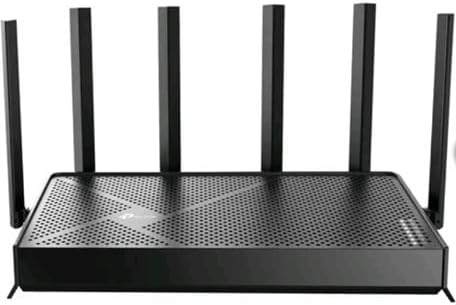
TP-Link Archer BE9500

A complete premium tri-band Wi-Fi 7 router whose 10G port and 6GHz band reward power users, but whose headline capabilities only pay off with Wi-Fi 7 clients and multi-gigabit gear.

Read the full review →

TP-Link Archer BE230

A compact dual-band Wi-Fi 7 entry with two 2.5G ports and EasyMesh — a sensible fit if you don’t need the missing 6GHz band or long-range 5GHz coverage.

Read the full review →

TP-Link Archer BE550

A balanced mid-range tri-band Wi-Fi 7 router that pairs the 6GHz band with five 2.5G ports, best suited to single-floor or medium homes.

Read the full review →

The 2026 Router Market at a Glance

Segment Reviewed products Best For Reviewed?
High-End Gaming Routers ASUS ROG Rapture GT-BE19000AI, TP-Link Archer BE9500 Enthusiast gamers and power users with multi-gigabit broadband and Wi-Fi 7 clients who want premium wired and wireless performance. Review · Review
Mesh Networking ASUS ZenWiFi BQ16 Pro, MSI Roamii BE Pro Large-home owners who want seamless whole-home Wi-Fi 7 coverage with multi-gigabit wired backhaul options. Review · Review
Outdoor Networking TP-Link Deco BE65-Outdoor Homeowners who need durable IP65-rated Wi-Fi beyond the walls and already run (or will adopt) a TP-Link Deco mesh. Review
Mainstream Home Routers GL.iNet Flint 3, TP-Link Archer BE230, TP-Link Archer BE550 Everyday households that want solid Wi-Fi 7 and fast wired ports without flagship hardware or a complete mesh system. Review · Review · Review

Note on classification: this table groups each router by its reviewed positioning, not by advertised speed. The two high-end gaming routers are positioned for enthusiasts and gamers; the mesh systems are multi-node systems rather than conventional single routers; the outdoor node is an IP65-rated add-on mesh unit; and the mainstream home routers are everyday single-unit products. A higher advertised wireless rate does not make a product faster in every environment — real throughput depends on your clients, placement and connection.

Not Sure Which Router to Buy?

If you’re still deciding, start with our router buying guide, which walks through Wi-Fi standards, coverage, wired connections and network configuration so you can match a router to your home and devices. For extra context on Wi-Fi 7 and the trade-offs between bands, ports and features, our best Wi-Fi 7 routers roundup compares the current options and explains which features actually matter.

Frequently Asked Questions

What should I look for when choosing a home router?
Start with your internet speed, home size and the devices you own. For most homes, a Wi-Fi 6 or Wi-Fi 7 router with gigabit (or faster) wired ports and a coverage area that matches your space is the practical baseline. If your home is large or multi-story, a mesh system may serve you better than a single router. Check the router buying guide in the links above for a full walkthrough.

Does a router with a higher advertised speed always perform better?
No. Advertised speeds are theoretical aggregate rates, not guaranteed internet or file-transfer speeds. Real-world throughput depends on your client devices, Wi-Fi generation, distance, interference and your ISP connection. A router with a bigger headline number is not automatically faster in your home — match the router to your actual devices and broadband rather than the number on the box.

Is a mesh system better than a single router?
It depends on your space. Mesh systems (like the ZenWiFi BQ16 Pro or Roamii BE Pro) deliver seamless whole-home coverage and are the better fit for large or multi-story homes, with more hardware and setup complexity. A single strong router — like the Flint 3, Archer BE550 or BE230 — is usually a better fit for apartments and single-floor homes. Choose based on home size and whether you have dead zones.

Do gaming routers actually reduce latency?
Gaming routers include features like traffic prioritization (QoS), gaming ports and gaming-focused management that can help in congested or busy networks, but they do not magically lower ping or improve game performance on their own. The benefit depends on your network environment, connection quality and whether those features are actually configured. They are most useful for households with many competing devices.

What should I check before installing an outdoor router?
Confirm the product has an explicit weather-resistance rating — the Deco BE65-Outdoor carries an IP65 rating — rather than assuming a unit is weatherproof. Check whether it is a standalone gateway or an add-on node that needs a compatible system (the BE65-Outdoor requires a TP-Link Deco network), verify power options (direct AC or PoE), and confirm the 6GHz band is available in your region. Plan mounting and coverage for the area you need to reach.

Does my device need to support Wi-Fi 7 to benefit from a Wi-Fi 7 router?
For the headline Wi-Fi 7 features — the 6GHz band, Multi-Link Operation (MLO), 320MHz channels and 4K-QAM — yes, your client device must support Wi-Fi 7. Older devices still connect and work normally using their own standards, so a Wi-Fi 7 router is forward-compatible, but you will only see its biggest speed and latency gains with Wi-Fi 7-capable clients and, ideally, a faster broadband plan.

Category: Uncategorized

Welcome to the ComponentCrate monitor reviews hub. Here you’ll find our full library of monitor reviews, organized so you can quickly find the display that matches how you use your PC — from 1440p and 4K gaming to ultrawide monitors and displays built for office productivity and creative work. Each card below links to a complete review with specs, test observations and a verdict; use the market overview to jump straight to the segment that fits you.

As an Amazon Associate, I earn from qualifying purchases.

Latest Reviews

ASUS ProArt PA278CV

A color-faithful 1440p monitor that’s a strong, well-rounded pick for sRGB/Rec.709 creative work — provided you don’t need HDR.

Read the full review →

ASUS TUF Gaming VG27AQ3A

One of the strongest picks in the 1440p tier, delivering a real 180Hz Fast IPS experience with certified adaptive-sync in the entry-level tier.

Read the full review →

Alienware AW2725Q

A premium 27-inch 4K gaming and HDR display (QD-OLED) that suits you if your GPU can feed 4K at high refresh rates — and a 1440p pick is the better fit if it can’t.

Read the full review →

BenQ PD3226G

A compelling hybrid designer monitor that blends reference-accurate color with smooth 144Hz play, plus Thunderbolt 4 and a KVM switch for creatives who also game.

Read the full review →

Dell S2725QC

A strong 4K productivity monitor with USB-C/65W convenience and 120Hz for mixed work and casual gaming, limited mainly by modest HDR and non-gaming-first motion handling.

Read the full review →

Dell UltraSharp U2723QE

One of the best 4K productivity monitors, pairing IPS Black contrast and excellent color with a genuine USB-C hub (90W PD, Ethernet, KVM) for a single-cable workstation.

Read the full review →

LG UltraGear 27GR83Q-B

A high-refresh 1440p monitor with flagship-style connectivity — full 240Hz over both DisplayPort and HDMI 2.1 — best for buyers who’ll actually use the speed or console HDMI 2.1.

Read the full review →

LG 27UP650K-W

Among the most balanced plain 4K productivity monitors — a sharp, color-rich IPS panel and a fully adjustable stand in a no-frills design, if you don’t need USB-C, a hub or speakers.

Read the full review →

Samsung Odyssey G9 G95C

A practical 49-inch super-ultrawide flagship: an immersive 5120×1440/240Hz VA panel with no burn-in anxiety — ideal if the format fits your desk, GPU and workflow.

Read the full review →

MSI MPG 321URXW

A flagship 32-inch 4K QD-OLED gaming monitor that adds 90W USB-C and KVM workstation conveniences, with a reassuring 3-year burn-in warranty for those who’ll use them.

Read the full review →

The 2026 Monitor Market at a Glance

Segment Reviewed products Best For Reviewed?
1440p gaming ASUS TUF Gaming VG27AQ3A, LG UltraGear 27GR83Q-B Budget-to-midrange PC and console gamers who want smooth high-refresh 1440p play without moving into premium display tiers. Review · Review
4K gaming Alienware AW2725Q, MSI MPG 321URXW Enthusiasts with high-end GPUs who want 4K detail plus OLED picture quality at high refresh rates. Review · Review
Ultrawide Samsung Odyssey G9 G95C Immersive gamers and productivity users who want one seamless super-wide panel without OLED burn-in management. Review
Office and creative work ASUS ProArt PA278CV, BenQ PD3226G, Dell S2725QC, Dell UltraSharp U2723QE, LG 27UP650K-W Professionals, creators and productivity users who need accurate color, crisp text, ergonomics and clean connectivity over gaming features. Review · Review · Review · Review · Review

Note on classification: high-quality professional displays are not gaming monitors just because they have sharp panels or high resolutions. The ProArt, UltraSharp, S2725QC, PD3226G and 27UP650K-W are reviewed as professional, productivity or creative-work displays and are grouped accordingly — they can run games, but that is not their reviewed positioning. The gaming segments above contain only products whose reviews explicitly position them for gaming.

Not Sure Which Monitor to Buy?

If you’re still deciding, start with our monitor buying guide, which walks through panel type, resolution, refresh rate, ergonomics and connectivity. Your graphics card matters too — our GPU guide helps you pick hardware that can actually drive the display you want. For high-resolution gaming, the 4K gaming pillar explains what 4K demands, and the 1440p gaming guide breaks down that segment for smooth, high-refresh play.

Frequently Asked Questions

What resolution should I choose for a gaming monitor?
It depends on your GPU and your target frame rate. 1440p is the sweet spot for most mid-to-high-end PC gamers — it looks sharp and is far easier to drive at high refresh rates than 4K. 4K delivers the most detail but demands a powerful graphics card to run at high frame rates. Check our 1440p and 4K gaming resources to match resolution to your hardware.

Is a 1440p monitor better than a 4K monitor for gaming?
Not universally — it depends on your setup. At the same refresh rate, 1440p is lighter on your GPU and often easier to drive, while 4K is sharper and more demanding. For smooth high-refresh play on a mid-range card, 1440p is often the better fit; for maximum detail with a high-end GPU, 4K shines. Choose based on your hardware and the games you play.

Is a high refresh rate important for every user?
No. High refresh rates (144Hz and up) make motion feel smoother and help in fast-paced, competitive games, but they matter far less for office work, productivity, or slower titles. A 60Hz or 120Hz display is perfectly fine for general and creative use; gamers who play fast titles or on consoles will get the most from a higher refresh panel.

Should I choose an ultrawide monitor for productivity?
Ultrawide panels like the 49-inch Odyssey G9 can replace a two-monitor setup with one seamless canvas, which suits multitaskers, video editors and traders. But the wide format isn’t for everyone: the aggressive curve can distort straight lines in some design work, and it needs desk space and GPU horsepower. Weigh the format against your actual workflow before committing.

Are professional monitors suitable for gaming?
They can run games, but they are not built for it. Professional monitors like the ProArt PA278CV, Dell UltraSharp U2723QE, BenQ PD3226G and LG 27UP650K-W prioritize color accuracy, ergonomics and connectivity, often at 60–120Hz, and are not high-refresh gaming panels. If gaming is a priority, a dedicated gaming display is the better choice; if color work matters most, a professional monitor is appropriate.

What should I check before buying a monitor for creative work?
Focus on panel type (IPS is a good default for color work), resolution (4K offers more working space), color gamut coverage (sRGB, Rec.709, DCI-P3), color accuracy and calibration, connectivity (USB-C with power delivery is very useful) and an ergonomic stand. Check the full review of each display you’re considering — for example the ProArt PA278CV for sRGB work or the Dell UltraSharp U2723QE for a hub-equipped 4K option — to see whether it fits your workflow.

Scroll to Top